

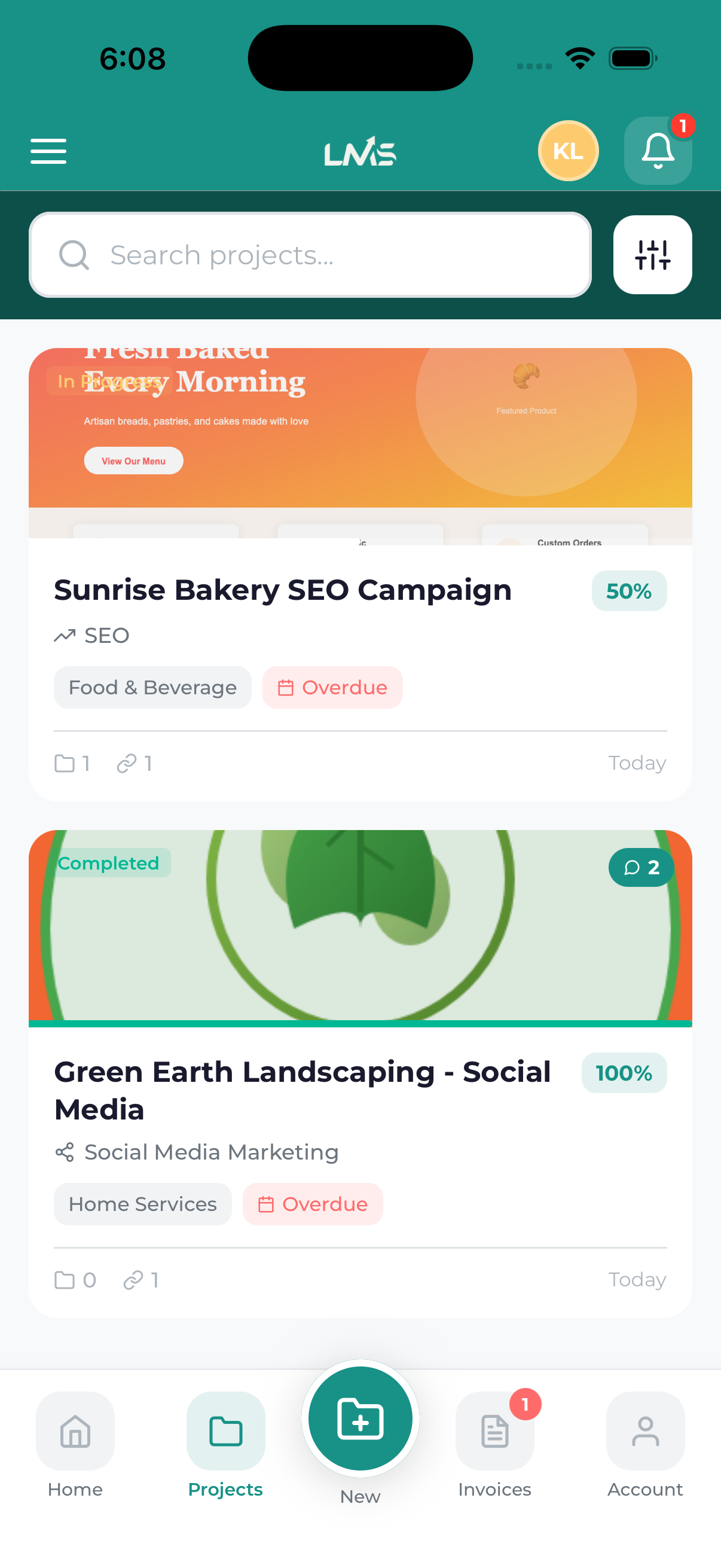
The Projects screen gives you a complete view of all your marketing projects with Lead Marketing Strategies. Whether you have one project or many, this screen helps you stay organized and track progress.
Accessing Your Projects
There are several ways to view your projects:
- Bottom Navigation – Tap the Projects tab in the bottom navigation bar
- Dashboard – Tap any project card on your dashboard, or tap “View All Projects”
- Side Menu – Open the navigation drawer and tap Projects
Understanding the Projects List
Project Cards
Each project appears as a card showing key information at a glance:
- Project Name – The title of your project (e.g., “Website Redesign”, “SEO Campaign”)
- Status Badge – Current project status with color coding
- Service Type – The category of service (SEO, Web Design, PPC, etc.)
- Progress Bar – Visual indicator of completion percentage
- Last Updated – When the project was most recently modified
- Unread Indicator – Shows if there are new messages or updates
Status Indicators
| Status | Color | What It Means |
|---|---|---|
| Draft | Gray | Project request saved but not submitted |
| Pending Review | Yellow | Submitted and awaiting our team’s review |
| In Progress | Blue | Active work is being done on your project |
| On Hold | Orange | Temporarily paused (usually awaiting input from you) |
| Completed | Green | Project deliverables have been delivered |
| Cancelled | Red | Project was cancelled |
Filtering and Sorting Projects
Filter by Status
To filter projects by status:
- Tap the Filter icon at the top of the projects list
- Select one or more status options
- Tap Apply to see filtered results
- Tap Clear to remove filters
Search Projects
To find a specific project:
- Tap the Search icon or search bar at the top
- Type the project name or keywords
- Results filter as you type
- Tap a result to open that project
Sort Options
Projects can be sorted by:
- Most Recent – Latest updated first (default)
- Oldest First – Earliest projects first
- Alphabetical – A-Z by project name
- Status – Grouped by current status
Project Card Actions
Quick View
Tap any project card to open the full project details screen where you can see timeline, files, chat, and more.
Quick Actions
Some project cards may show quick action buttons:
- Message – Jump directly to project chat
- View Files – See project attachments
- Pay Invoice – If there’s an associated unpaid invoice
Empty States
No Projects Yet
If you don’t have any projects, you’ll see a message with a button to start your first project. Tap Start a Project to begin the project wizard.
No Matching Results
If your search or filter returns no results, try:
- Checking your spelling
- Using different keywords
- Clearing filters to see all projects
Refreshing the List
To get the latest project updates:
- Pull down from the top of the list
- Release when you see the loading spinner
- The list will refresh with current data
Look for the notification badge on project cards – this indicates new activity like messages or status updates that you haven’t seen yet.
Starting a New Project
From the projects screen, you can start a new project by:
- Tapping the + button (usually in the bottom-right corner)
- Tapping New Project in the header
This opens the project wizard where you can describe your needs and submit a project request.
