

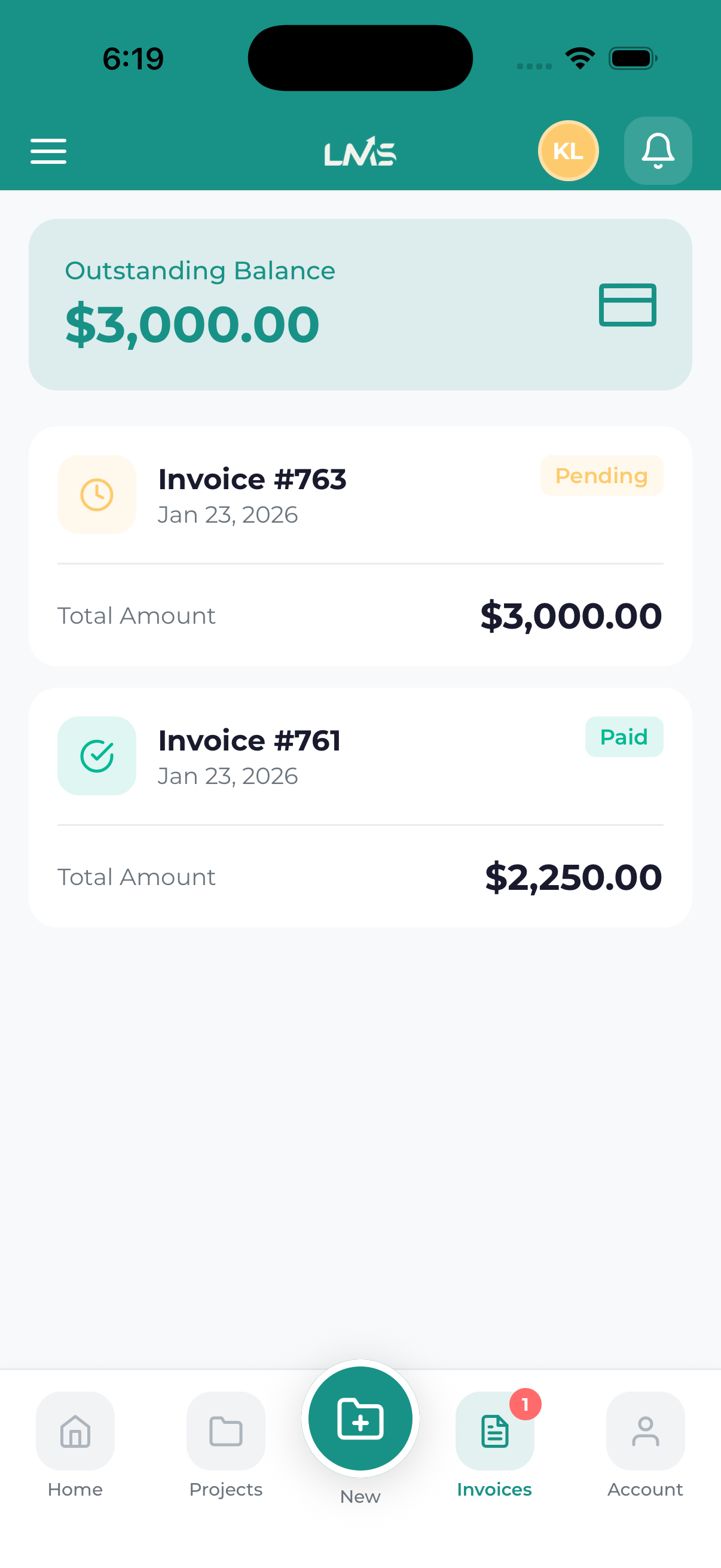
The Invoices screen gives you a complete view of all your billing history with Lead Marketing Strategies. You can see pending payments, view invoice details, and make payments directly from the app.
Accessing Your Invoices
To view your invoices:
- Bottom Navigation – Tap the Invoices tab
- Dashboard – Tap “Pending Invoices” stat card or any invoice notification
- Side Menu – Open the drawer and tap Invoices
Understanding the Invoice List
Invoice Cards
Each invoice shows:
- Invoice Number – Unique identifier (e.g., INV-2024-0042)
- Amount – Total amount due
- Status Badge – Current payment status
- Due Date – When payment is expected
- Project Name – Associated project (if applicable)
Status Types
| Status | Color | Meaning |
|---|---|---|
| Draft | Gray | Invoice created but not yet sent |
| Pending | Yellow | Awaiting payment |
| Overdue | Red | Past the due date |
| Paid | Green | Payment received |
| Partial | Blue | Partial payment made |
Filtering Invoices
Filter your invoices to find what you need:
- Tap the Filter icon at the top
- Select status options (Pending, Paid, Overdue, All)
- Tap Apply
Quick Filters
Some views have quick filter tabs at the top:
- All – Every invoice
- Unpaid – Pending and overdue invoices
- Paid – Completed payments
Searching Invoices
To find a specific invoice:
- Tap the search bar at the top
- Enter the invoice number, amount, or project name
- Results filter as you type
Opening Invoice Details
Tap any invoice card to view complete details including:
- Full line item breakdown
- Subtotals, taxes, and total
- Payment history
- Pay button (for unpaid invoices)
Tip
Invoices marked with a notification badge have updates you haven’t seen yet – like a new invoice or status change.
Refreshing the List
Pull down on the invoice list to refresh and see the latest invoices and status updates.
