

Email verification is a crucial security step that confirms you own the email address associated with your account. This helps protect your account and ensures you receive important notifications about your projects, invoices, and meetings.
Why Email Verification is Required
Verifying your email address:
- Protects your account – Prevents others from creating accounts with your email
- Ensures delivery – Confirms we can reach you with important updates
- Enables all features – Some features require a verified email to function
- Allows password recovery – You’ll need a verified email to reset your password
- Provides account security – Helps prevent unauthorized access to your projects
If you created your account on the Client Portal website and already verified your email there, you don’t need to verify again. Your verification carries over to the mobile app!
The Verification Process
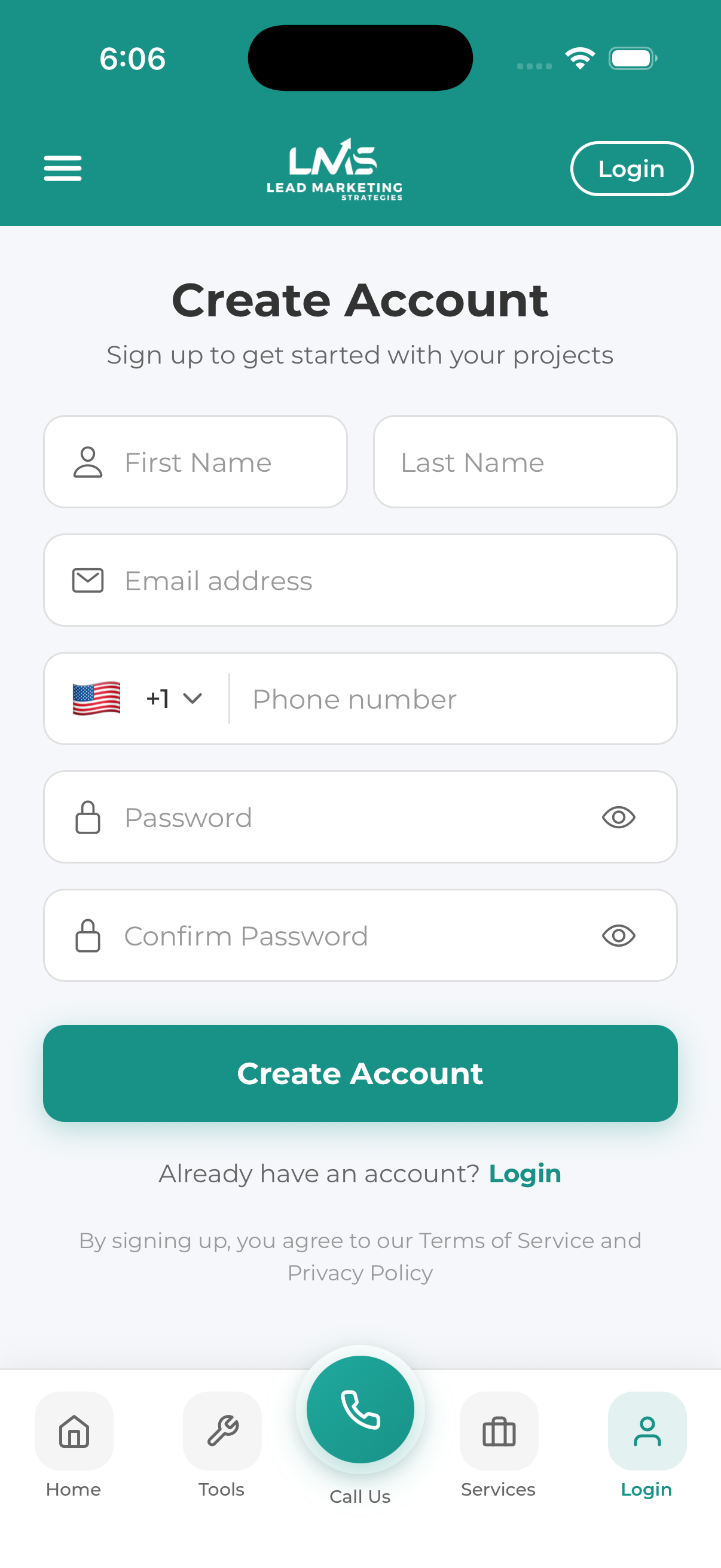
After you submit your account registration, we automatically send a verification email to the address you provided.
Open your email inbox and look for a message from Lead Marketing Strategies. The subject line will be something like “Verify Your Email Address” or “Welcome – Please Confirm Your Email”.
The verification email contains:
- A warm welcome message
- A verification button or link
- Instructions on what to do
- A note about expiration (usually 24-48 hours)
Tap or click the “Verify Email” button or the verification link in the email. This will open in your browser.
You’ll see a confirmation page letting you know your email has been verified successfully. You may be redirected to the login page or asked to return to the app.
Go back to the Lead Marketing Strategies app and log in. Your account is now fully activated with all features available!
What the Verification Email Looks Like
The email will come from an address like:
- noreply@leadmarketingstrategies.com
- hello@leadmarketingstrategies.com
The email typically includes:
- Our company logo
- A personalized greeting with your name
- A brief explanation of why you’re receiving this
- A prominent “Verify Email” or “Confirm Email” button
- An alternative text link (in case the button doesn’t work)
- Contact information if you have questions
Email Not Arriving? Here’s What to Check
1. Check Your Spam/Junk Folder
Email filters can sometimes flag legitimate emails. Look in your spam or junk folder and mark the email as “Not Spam” if you find it there.
2. Check Other Email Folders
Depending on your email provider:
- Gmail: Check the “Promotions” or “Updates” tabs
- Outlook: Check the “Other” or “Focused” inbox
- Yahoo: Check the “Bulk” folder
- Apple Mail: Check all folders including “Unknown Senders”
3. Wait a Few Minutes
Sometimes email delivery can take 5-10 minutes. Be patient and check again shortly.
4. Verify Your Email Address
Double-check that you entered your email correctly during registration. A simple typo like “gmial.com” instead of “gmail.com” will prevent delivery.
5. Check Your Email Storage
If your inbox is full, new emails may be rejected. Delete some old emails and try again.
6. Add Us to Your Contacts
Add noreply@leadmarketingstrategies.com to your contacts list to help ensure our emails reach your inbox.
Search your email for “Lead Marketing” or “verification” to quickly find the email if it was sorted into an unexpected folder.
How to Resend the Verification Email
If you can’t find the original verification email, you can request a new one:
Launch the Lead Marketing Strategies app on your device.
Navigate to the login screen if you’re not already there.
After attempting to log in with an unverified account, you’ll see a message about email verification. Look for a “Resend Verification Email” link or button.
A new verification email will be sent. Check your inbox (and spam folder) within the next few minutes.
Verification Link Expired?
For security reasons, verification links expire after a certain period (usually 24-48 hours). If your link has expired:
- Don’t worry – your account information is saved
- Simply request a new verification email using the steps above
- Use the new link within the expiration period
Each time you request a new verification email, previous links become invalid. Always use the most recent email you received.
What If I Used the Wrong Email?
If you registered with an incorrect email address and can’t receive the verification:
- If you haven’t verified yet: You may need to create a new account with the correct email address
- If you catch it quickly: Contact our support team – we may be able to help update your email
- For security reasons: We cannot change email addresses to addresses you can’t verify
Contact our support team at support@leadmarketingstrategies.com for assistance.
Features Requiring Verification
While you can browse parts of the app without verification, these features require a verified email:
- Starting new projects
- Viewing sensitive project details
- Making payments
- Scheduling meetings
- Receiving email notifications
- Using password reset
- Accessing invoices
- Using project chat features
Troubleshooting
“Verification link is invalid”
- The link may have expired – request a new one
- You may have already verified – try logging in
- The link may have been corrupted – copy and paste it directly instead of clicking
“Already verified” message
Good news! Your email is already verified. Simply log in to the app with your email and password.
Corporate email blocking
Some corporate email systems block emails from unknown senders. Ask your IT department to whitelist emails from leadmarketingstrategies.com, or use a personal email address instead.
Still Having Issues?
If you’ve tried everything above and still can’t verify your email:
- Email: support@leadmarketingstrategies.com
- Phone: (631) 489-5088
- Contact Form: Contact Us
Include the following information to help us assist you faster:
- The email address you registered with
- When you created the account
- What error messages you’re seeing (if any)
- What email provider you use (Gmail, Outlook, etc.)
