

Your dashboard is the central hub of the Lead Marketing Strategies app. It provides a quick overview of everything important: your active projects, recent activity, upcoming meetings, and pending invoices. This guide explains each section of the dashboard.
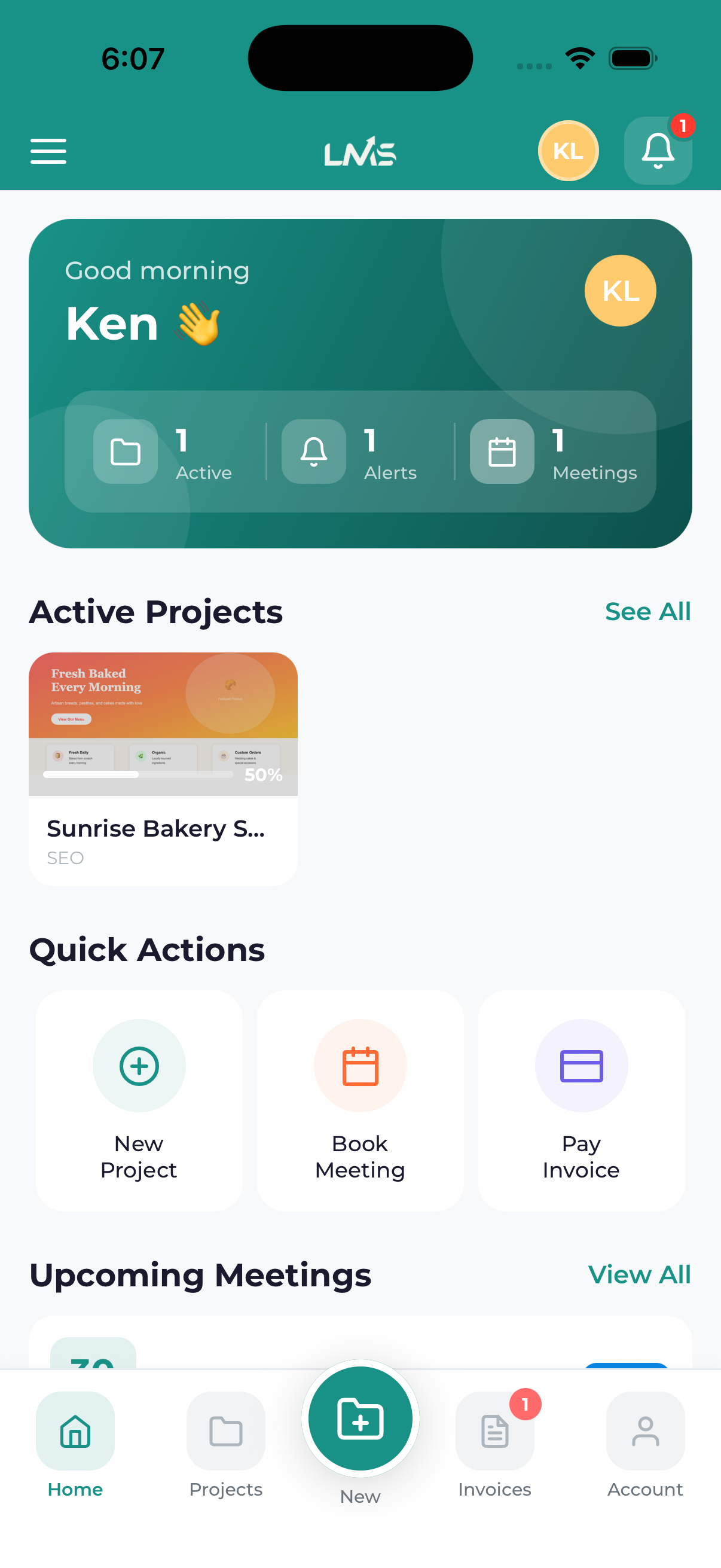
Dashboard Sections
Welcome Header
At the top of your dashboard, you will see:
- Personalized greeting – A welcome message with your name
- Current date – Today’s date for quick reference
- Notification bell – Shows unread notification count (tap to view all notifications)
Quick Stats Overview
Below the header, you will find summary cards showing:
- Active Projects – Number of projects currently in progress
- Pending Invoices – Invoices awaiting payment
- Upcoming Meetings – Scheduled meetings in the next 7 days
- Unread Messages – New messages from our team
Tap any stat card to jump directly to that section. For example, tap “Pending Invoices” to go straight to your invoices list.
Active Projects Section
This section displays your most recent active projects:
- Project name – The title of each project
- Status badge – Current status (In Progress, Pending Review, etc.)
- Progress indicator – Visual progress bar showing completion percentage
- Last updated – When the project was last modified
Tap any project card to view full project details, timeline, files, and chat.
Recent Activity Feed
The activity feed shows recent events across your account:
- Project updates – Status changes, new milestones completed
- New messages – Recent chat messages from our team
- Invoice activity – New invoices, payment confirmations
- Meeting updates – Upcoming meetings, rescheduled appointments
Each activity item shows a timestamp so you know when it occurred.
Upcoming Meetings
If you have meetings scheduled, they appear here showing:
- Meeting title – The purpose of the meeting
- Date and time – When the meeting is scheduled
- Duration – Expected meeting length
- Join button – Quick access to join when the time comes
Quick Actions
At the bottom of the dashboard, you will find quick action buttons:
- Start New Project – Begin the project request wizard
- Book Meeting – Schedule a consultation or project review
- View All Projects – Go to your complete projects list
- Pay Invoice – Quick access to pay pending invoices
Refreshing Your Dashboard
To see the latest updates:
- Pull down from the top of the dashboard screen
- Release when you see the loading indicator
- The dashboard will refresh with the latest data
The dashboard automatically refreshes when you open the app or return to it from another screen. You can also manually refresh anytime using the pull-down gesture.
Understanding Status Indicators
Project Status Colors
| Color | Status | Meaning |
|---|---|---|
| Blue | In Progress | Work is actively being done |
| Yellow | Pending Review | Awaiting your feedback or approval |
| Orange | On Hold | Project is temporarily paused |
| Green | Completed | Project is finished |
| Gray | Draft | Project request not yet submitted |
Invoice Status Colors
| Color | Status | Meaning |
|---|---|---|
| Yellow | Pending | Payment due |
| Red | Overdue | Past due date |
| Green | Paid | Payment received |
Navigating From the Dashboard
The dashboard serves as your starting point. From here you can:
- Tap the menu icon (three lines, top-left) – Opens the navigation drawer with all sections
- Tap the notification bell (top-right) – View all notifications
- Tap any project card – View project details
- Tap any stat card – Jump to that section
- Use bottom navigation – Switch between Home, Projects, Invoices, and Meetings
The dashboard is designed to show you what needs attention. Items requiring action (pending invoices, unread messages, upcoming meetings) are highlighted so you never miss anything important.
