

The Files section of your project gives you access to all documents, images, and deliverables associated with your marketing project. You can view, download, and upload files right from your mobile device.
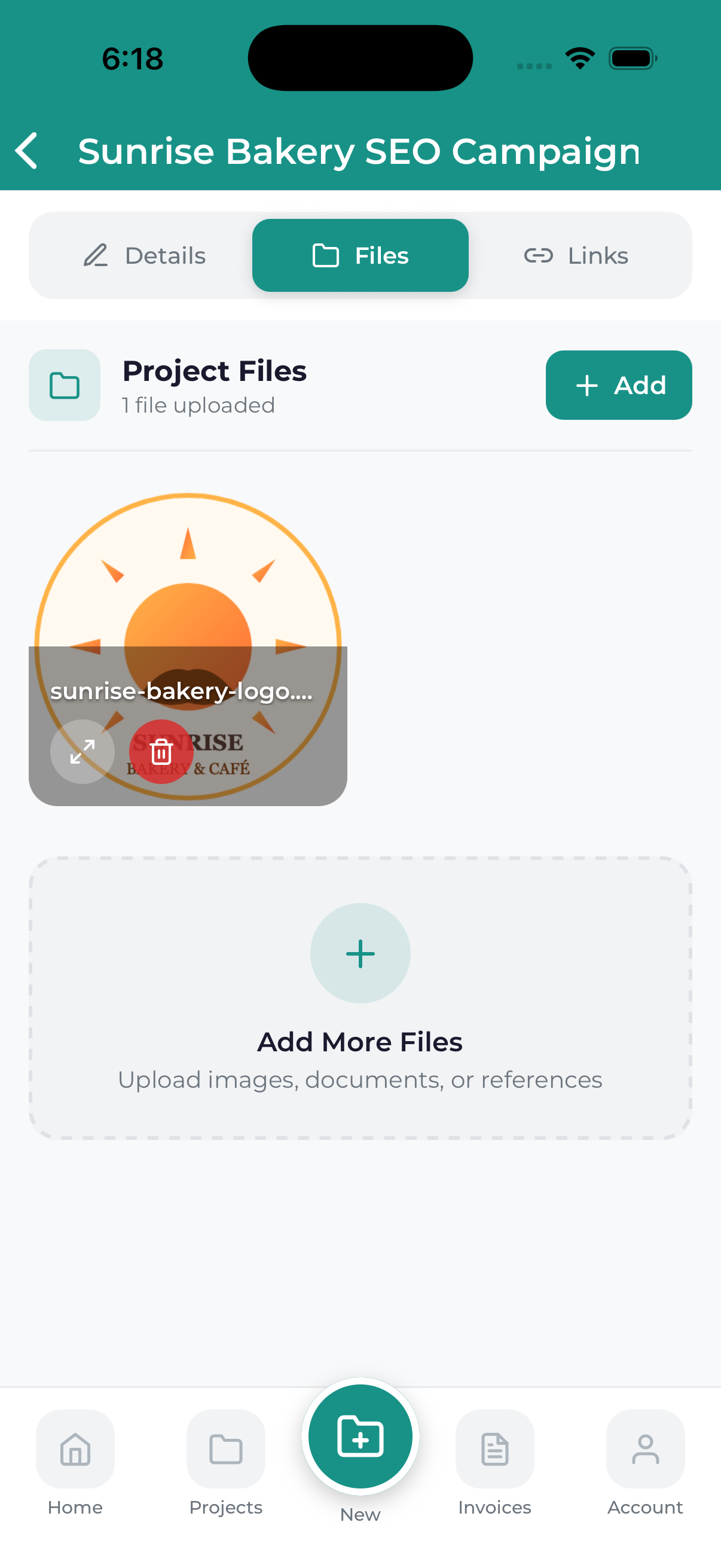
Accessing Project Files
To view files for a project:
- Open the project details screen
- Tap the Files tab
- Browse the available files and folders
Understanding File Organization
File Categories
Files may be organized into categories:
- Deliverables – Completed work from our team (designs, reports, etc.)
- Your Uploads – Files you’ve shared with us
- Resources – Brand guidelines, reference materials, assets
- Documents – Contracts, proposals, briefs
File Information
Each file displays:
- File name – The name of the file
- File type icon – Visual indicator of format (PDF, image, etc.)
- File size – How large the file is
- Upload date – When it was added
- Uploaded by – Who added the file
Viewing Files
Preview
Tap any file to open a preview. Supported preview types include:
- Images – JPG, PNG, GIF, WebP
- Documents – PDF files
- Videos – MP4, MOV (streaming preview)
Full-Screen View
For images and PDFs, tap the expand icon to view in full screen. Use pinch gestures to zoom in and out.
Downloading Files
Tap on the file you want to download to open its preview.
Look for the download icon (usually a down arrow) and tap it.
Select where to save the file on your device. On iOS, you can save to Files app. On Android, choose your preferred folder.
You’ll see a confirmation when the download is complete.
Downloading Multiple Files
If available, you can select multiple files and download them together as a ZIP file.
Uploading Files
To share files with our team:
Look for the upload button, usually in the top-right corner or as a floating action button.
Choose where to upload from:
- Photo Library – Select images/videos from your device
- Camera – Take a new photo
- Files – Browse documents on your device
- Cloud Storage – Connect to Dropbox, Google Drive, etc.
Select the file(s) you want to upload. You can usually select multiple files at once.
Tap the upload/confirm button. You’ll see upload progress for each file.
Maximum file size is typically 25MB per file. For larger files, contact our team and we’ll provide an alternative upload method.
Supported File Types
| Category | Formats |
|---|---|
| Images | JPG, JPEG, PNG, GIF, WebP, SVG |
| Documents | PDF, DOC, DOCX, TXT, RTF |
| Spreadsheets | XLS, XLSX, CSV |
| Presentations | PPT, PPTX |
| Design Files | PSD, AI, EPS, SKETCH |
| Video | MP4, MOV, AVI |
| Audio | MP3, WAV, M4A |
| Archives | ZIP, RAR |
Sharing Files
To share a project file with someone else:
- Open the file preview
- Tap the Share icon
- Choose how to share (email, messaging app, etc.)
Project files may contain confidential information. Only share files with authorized parties and in accordance with any agreements you have with us.
File Notifications
You’ll be notified when:
- New files are uploaded to your project
- Deliverables are ready for review
- Files are updated or replaced
Troubleshooting
Upload Failed
- Check your internet connection
- Verify the file is under the size limit
- Try uploading one file at a time
- Check that the file format is supported
Can’t Download
- Ensure you have enough storage space on your device
- Check your internet connection
- Try closing and reopening the app
File Won’t Open
- Download the file and open with a compatible app
- Some specialized formats require specific software
- Contact support if you need help accessing a file
