

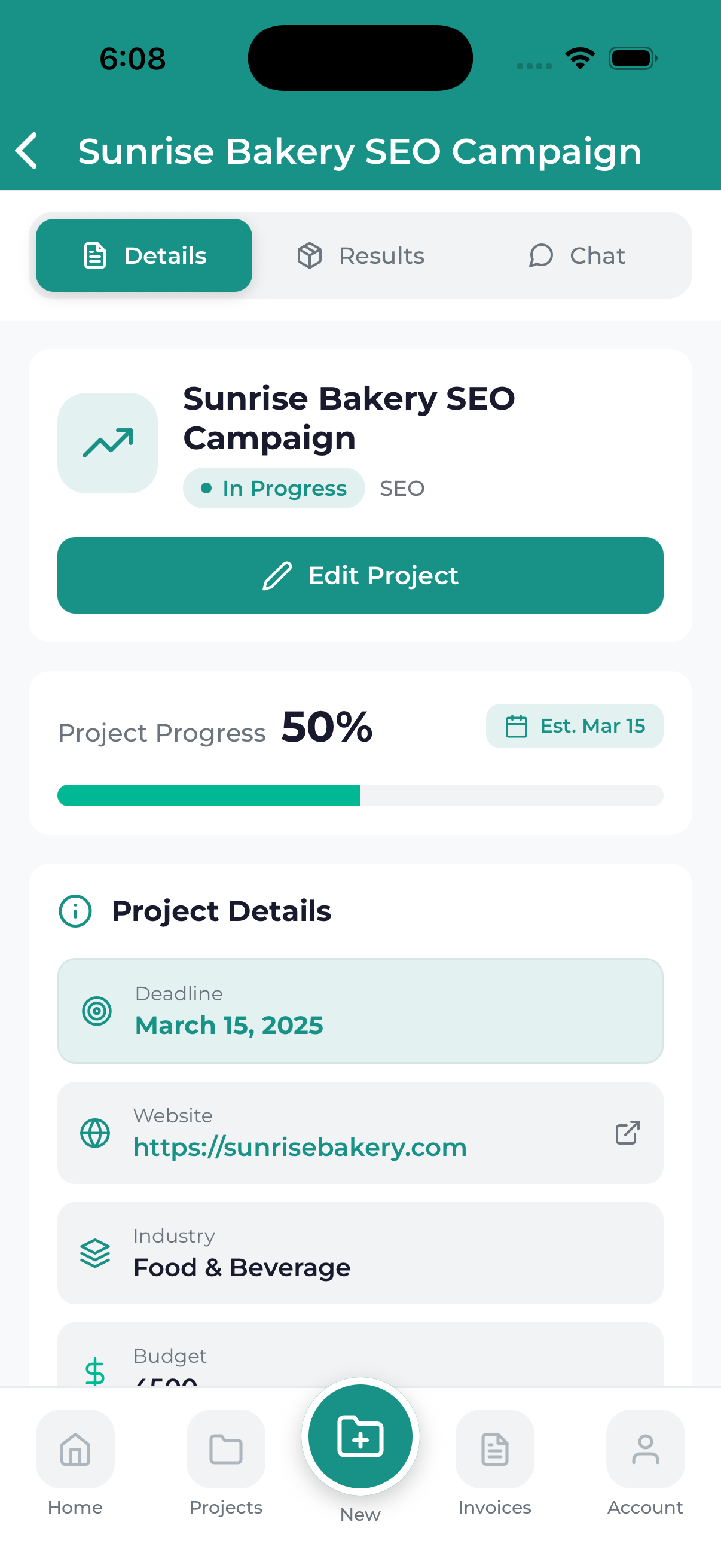
The project details screen gives you complete visibility into your marketing project. Here you can track progress, view milestones, access files, communicate with our team, and see everything related to your project in one place.
Accessing Project Details
To view project details:
- Navigate to the Projects screen
- Tap on any project card
- The full project details screen will open
Project Details Screen Sections
Header Section
At the top of the screen you’ll see:
- Project Name – The title of your project
- Status Badge – Current project status
- Service Type – The category of service
- Overall Progress – Percentage complete
Project Overview Tab
The overview provides a summary including:
- Description – What the project is about
- Start Date – When work began
- Target Completion – Expected finish date
- Project Manager – Your main point of contact
- Key Objectives – The main goals of the project
Timeline Tab
The timeline shows your project’s progress through milestones:
- Milestones – Key phases of your project
- Completion status – Which milestones are done, in progress, or upcoming
- Dates – When each milestone was or will be completed
- Deliverables – What’s included in each milestone
Milestone Status Icons
- Checkmark (Green) – Milestone completed
- In Progress (Blue) – Currently being worked on
- Upcoming (Gray) – Not yet started
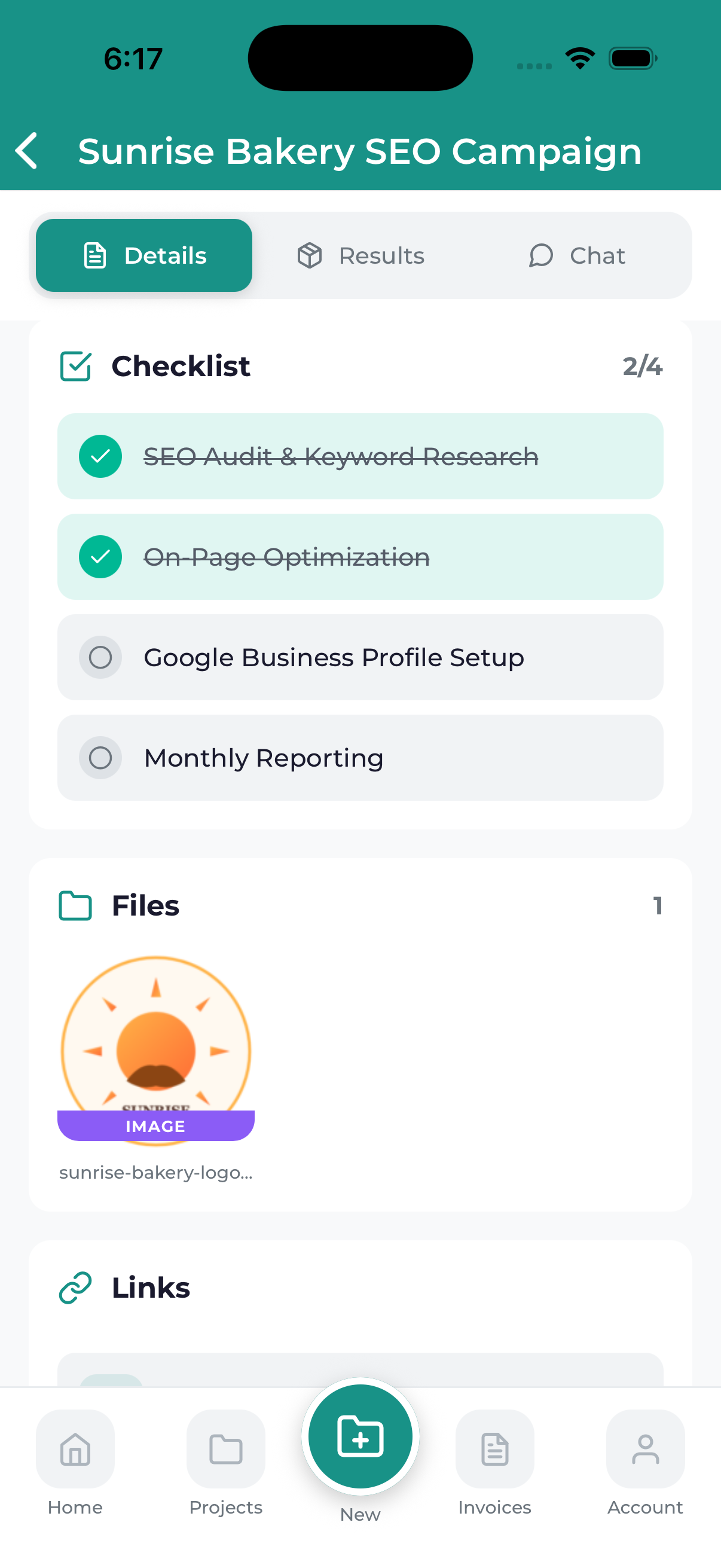
Files Tab
Access all project-related files:
- Deliverables – Completed work from our team
- Your Uploads – Files you’ve shared with us
- Resources – Reference materials, brand assets, etc.
Tap any file to preview or download it to your device.
Chat Tab
Direct communication with our team:
- Message history – All previous conversations
- Send messages – Type and send new messages
- Attach files – Share images, documents, etc.
- Notifications – Get alerted when you receive replies
Reading the Timeline
Your project timeline is organized into phases. Each phase contains:
Phase Information
- Phase Name – What this stage of work is called
- Status Indicator – Visual showing complete/in progress/upcoming
- Date Range – When this phase occurs
- Description – What work is included
Example Timeline Phases
A typical website project might include:
- Discovery & Planning – Understanding your needs and goals
- Design – Creating mockups and visual designs
- Development – Building the actual website
- Testing & Review – Quality assurance and your feedback
- Launch – Going live with the finished product
Your timeline is updated in real-time as work progresses. When a milestone is completed, you’ll see it marked as done and receive a notification.
Project Details Actions
Quick Actions Bar
At the bottom of the screen, you may see quick action buttons:
- Message – Jump to the chat tab
- Call – Contact your project manager
- Files – Jump to the files tab
- More – Additional options
Header Actions
In the header area:
- Back Arrow – Return to projects list
- Notification Bell – See project-specific notifications
- More Menu – Additional project options
Understanding Progress Indicators
Overall Progress Bar
Shows the total project completion percentage based on completed milestones.
Individual Milestone Progress
Each milestone may show its own progress if it has sub-tasks.
Color Coding
- Green sections – Completed work
- Blue sections – Currently in progress
- Gray sections – Not yet started
Staying Updated
To stay informed about your project:
- Enable notifications – Get alerts for all project updates
- Check regularly – Open the app to see the latest status
- Read messages – Our team communicates through project chat
- Review files – Check the files tab when notified of new uploads
Pull down on any tab to refresh and see the latest updates. The app will show a loading indicator while fetching new data.
