

Project chat is your direct line of communication with our team. Every project has its own dedicated chat where you can ask questions, provide feedback, share files, and stay connected throughout the project lifecycle.
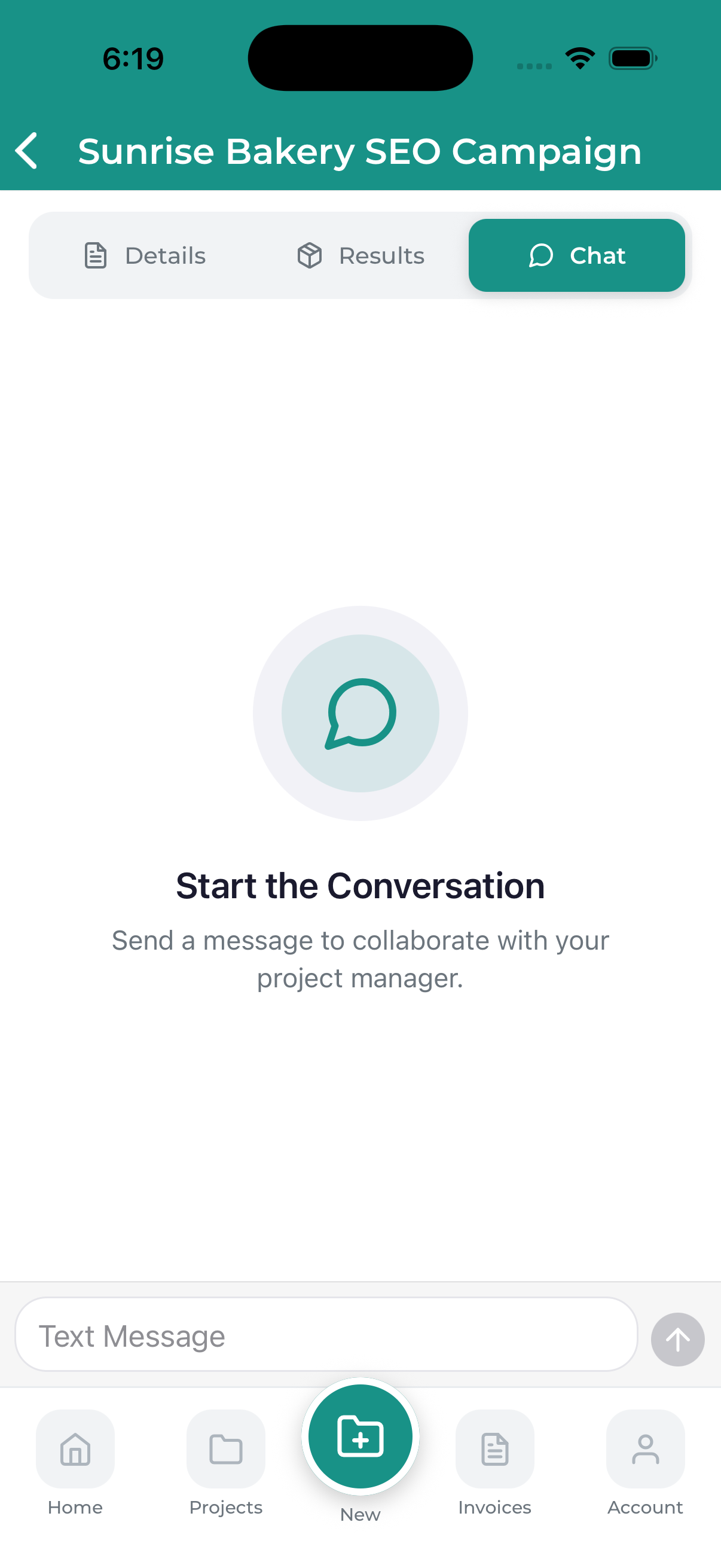
Accessing Project Chat
To open the chat for any project:
- Navigate to the project details screen
- Tap the Chat tab
- Or tap the chat/message icon in the quick actions
Chat Features
Sending Messages
Tap the message input field at the bottom of the screen and type your message.
Tap the send button (arrow icon) to deliver your message. It will appear in the chat immediately.
Attaching Files
To share files with our team:
- Tap the attachment icon (paperclip or + icon)
- Choose the file source:
- Photo Library – Select images from your device
- Take Photo – Capture a new image
- Documents – Choose files from your device
- Select the file(s) you want to share
- Add an optional message
- Tap send
You can share images (JPG, PNG, GIF), documents (PDF, DOC, DOCX), spreadsheets (XLS, XLSX), and other common file formats. Maximum file size is typically 25MB per file.
Reading Messages
Messages appear in chronological order with:
- Sender name – Who sent the message
- Timestamp – When it was sent
- Message content – The text of the message
- Attachments – Any files included (tap to view/download)
Your messages appear on the right, team messages appear on the left.
Chat Notifications
New Message Alerts
When you receive a new message:
- Push notification – If enabled on your device
- Badge indicator – On the Projects tab and project card
- In-app notification – In your notification center
- Email – For important messages (based on your settings)
Managing Notifications
Control chat notifications in your account settings. You can choose to receive:
- All messages
- Only important messages
- Daily summary
- No chat notifications
Best Practices for Project Communication
Be Specific
Include relevant details in your messages. Instead of “I don’t like it,” try “The blue color in the header feels too dark. Can we try a lighter shade?”
Use Attachments
When discussing visual elements, attach screenshots or reference images to make your feedback clear.
Ask Questions
If something is unclear, ask! Our team is happy to explain any aspect of your project.
Respond Promptly
Timely responses help keep your project on schedule. Check for messages regularly and respond when you can.
Keep all project communication in the project chat rather than separate emails. This keeps everything organized and ensures the entire team has context.
Who You’re Chatting With
Project chat connects you with:
- Project Manager – Your main point of contact
- Specialists – Designers, developers, SEO experts, etc.
- Account Manager – For billing or account questions
Messages are seen by the relevant team members working on your project.
Chat History
All chat history is preserved for the life of the project:
- Scroll up to see older messages
- Search functionality may be available for longer chats
- History remains accessible even after project completion
Troubleshooting Chat Issues
Messages Not Sending
- Check your internet connection
- Try closing and reopening the app
- Ensure the app is updated to the latest version
Not Receiving Notifications
- Check notification permissions in device settings
- Verify notification settings in the app
- Ensure you have a stable internet connection
Can’t Attach Files
- Check that the app has permission to access your photos/files
- Ensure the file is under the size limit
- Try a different file format if one isn’t working
