

The Notification Center is your central hub for all alerts and updates. Here you can see everything happening with your account, projects, invoices, and meetings.
Accessing Notifications
To view your notifications:
- Bell Icon – Tap the notification bell in the top navigation bar
- Side Menu – Open drawer and tap Notifications
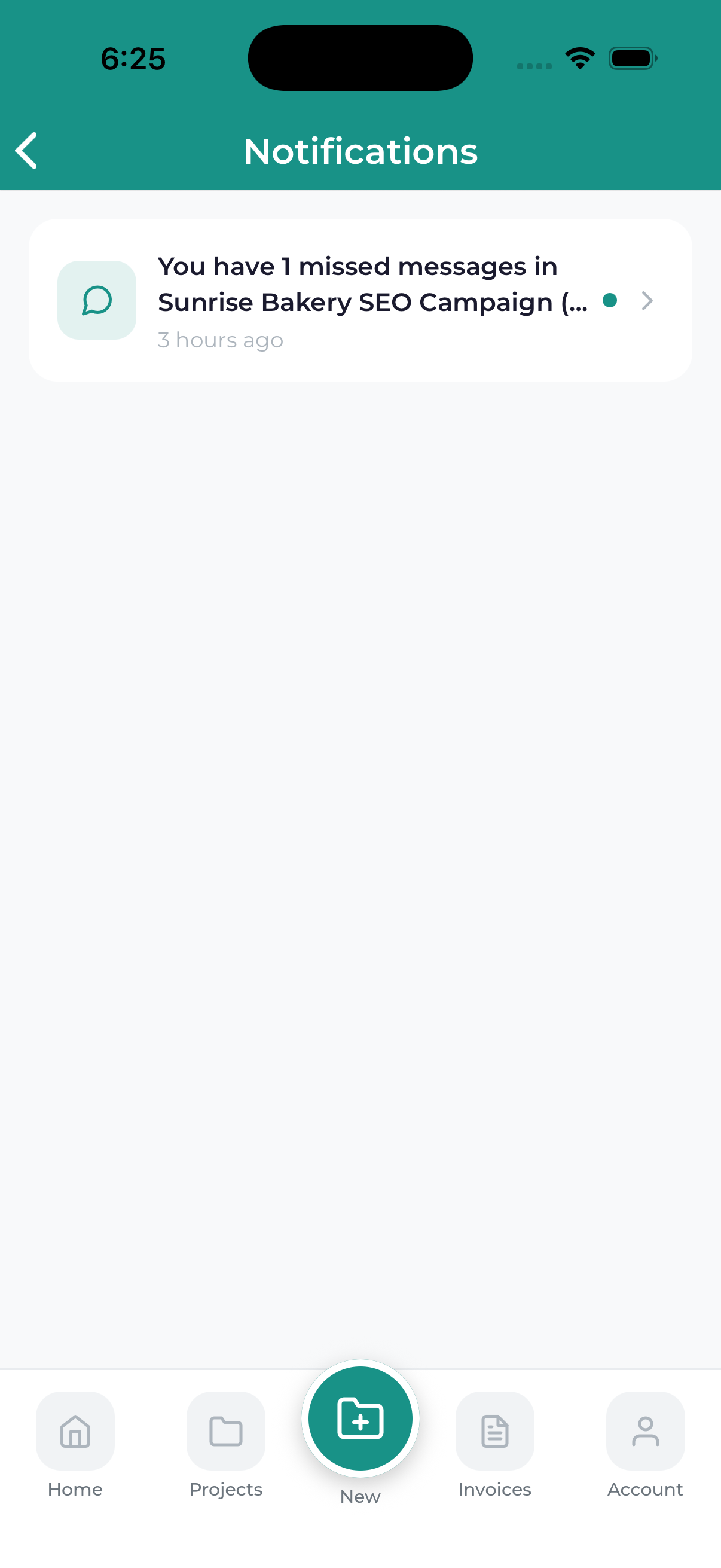
Notification List
Notifications are displayed in chronological order (newest first). Each notification shows:
- Icon – Visual indicator of notification type
- Title – Brief description of what happened
- Description – Additional details
- Timestamp – When it occurred
- Read/Unread Status – Unread notifications are highlighted
Notification Actions
View Related Item
Tap a notification to open the related item (project, invoice, meeting, etc.).
Mark as Read
Notifications are automatically marked as read when you view them. You can also mark all as read from the menu.
Delete Notifications
Swipe left on a notification to delete it, or use the clear all option.
Notification Badge
The red badge on the notification bell shows the count of unread notifications. This badge appears:
- On the app icon (on your home screen)
- On the notification bell in the app
- On relevant tabs (Projects, Invoices, etc.)
Managing Notification Overload
If you’re receiving too many notifications:
- Use the filter options to focus on specific types
- Adjust notification preferences in settings
- Mark batches as read to clear the badge
Check your notifications regularly to stay on top of project updates, messages, and upcoming deadlines.
