

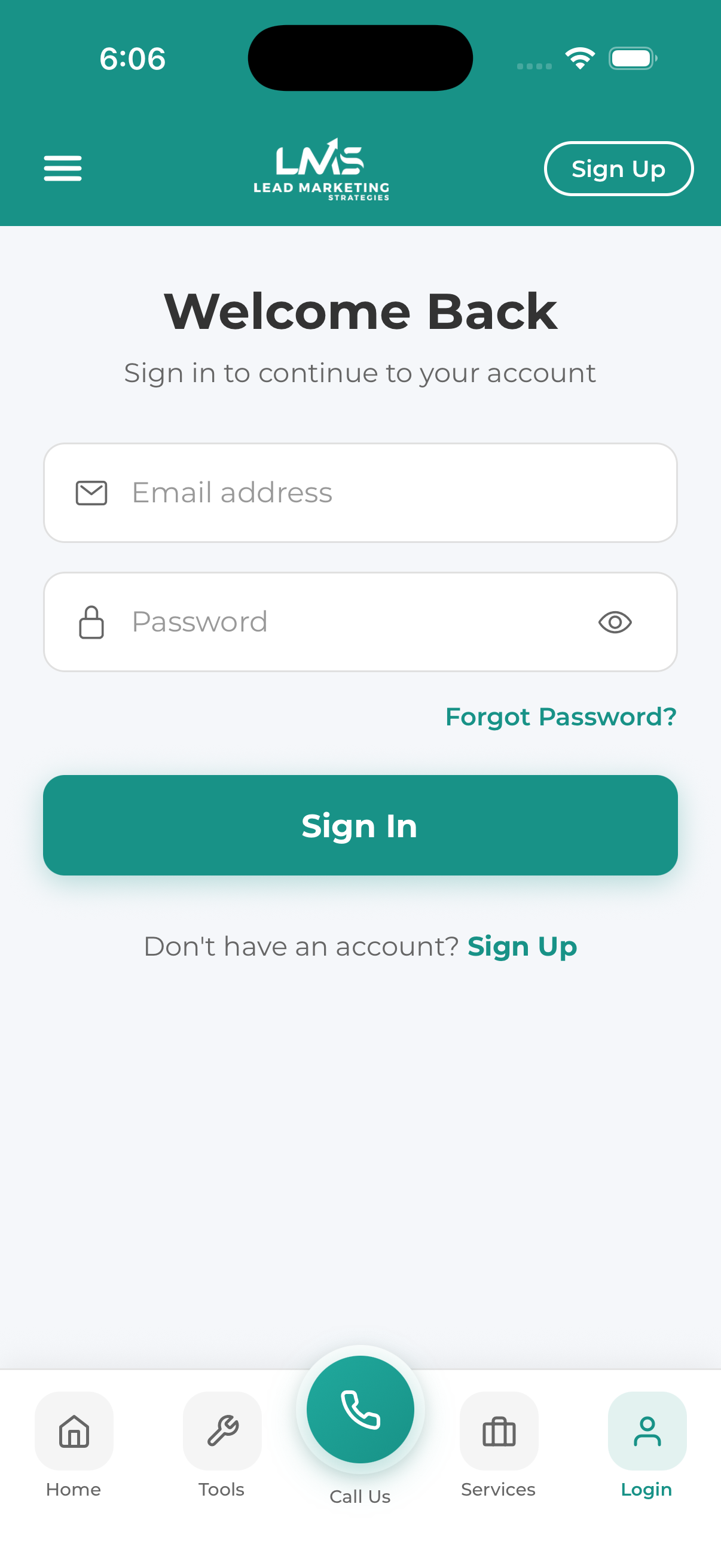
Log into the Lead Marketing Strategies app to access your projects, invoices, meetings, and communicate with our team.
Login Steps
Tap the Lead Marketing Strategies app icon on your device to launch it.
On the welcome screen, tap the Log In button.
Type the email address associated with your account. This is the same email you used when signing up.
Type your account password. Tap the eye icon to show/hide your password as you type to avoid mistakes.
Press the Log In button to access your account. If successful, you’ll be taken to your dashboard.
Staying Logged In
The app automatically keeps you logged in for convenience. You won’t need to enter your credentials every time you open the app.
You’ll be logged out automatically if:
- You manually log out from the app
- You change your password (on any device)
- Your session expires after extended inactivity (usually 30+ days)
- You uninstall and reinstall the app
- There’s a security concern with your account
Forgot Your Password?
If you can’t remember your password:
On the login screen, tap the Forgot Password? link below the password field.
Type the email address associated with your account and tap Send Reset Link.
Open your email and look for a message from Lead Marketing Strategies with the subject “Reset Your Password” or similar.
Open the email and click the password reset link. This will take you to a page where you can create a new password.
Enter and confirm your new password following the password requirements (8+ characters, uppercase, lowercase, number).
Return to the app and log in with your email and new password.
Troubleshooting Login Issues
“Invalid email or password”
This error means the email/password combination doesn’t match our records. Try these fixes:
- Check for typos – Make sure the email is spelled correctly
- Check caps lock – Passwords are case-sensitive
- Try another email – You might have signed up with a different email address
- Reset your password – Use “Forgot Password?” if you’re unsure
“Account not verified”
Your account exists but email verification isn’t complete:
- Check your email for the original verification message
- Look in spam/junk folders
- Request a new verification email
“Account locked” or “Too many attempts”
For security, accounts are temporarily locked after multiple failed login attempts:
- Wait 15-30 minutes before trying again
- Use “Forgot Password?” to reset your credentials
- Contact support if you’re still locked out
App says “Network error” or won’t connect
- Check your internet connection
- Try switching between WiFi and cellular data
- Close and reopen the app
- Restart your device
- Check if other apps can connect to the internet
If you receive unexpected password reset emails that you didn’t request, someone may be trying to access your account. Consider changing your password immediately and contact our support team.
Using the Same Account Everywhere
Your Lead Marketing Strategies account works across all platforms:
- Mobile App (iOS) – iPhone, iPad, Mac with Apple silicon
- Mobile App (Android) – Android phones and tablets
- Client Portal – Any web browser at app.leadmarketingstrategies.com
Your projects, invoices, messages, and all data sync automatically across all platforms.
