

Forgot your password? No problem. Here’s how to reset it and regain access to your account.
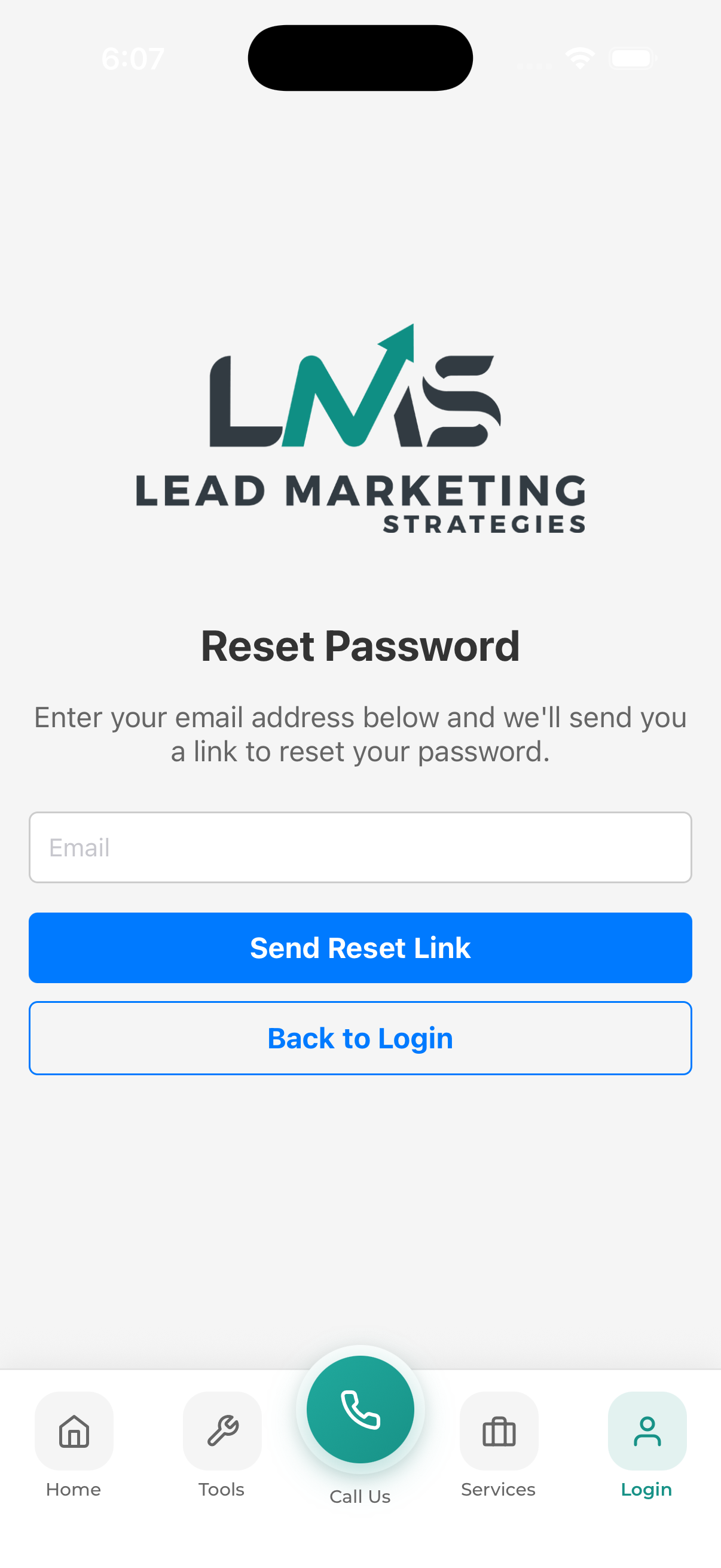
Password Reset Steps
Go to Login Screen
Open the app and navigate to the login screen.
Tap “Forgot Password”
Look for the “Forgot Password?” link below the password field and tap it.
Enter Your Email
Type the email address associated with your account.
Submit Request
Tap “Send Reset Link” or “Reset Password”.
Check Your Email
Look for an email with the subject “Reset Your Password” (check spam too).
Click the Reset Link
Open the email and click the password reset link.
Create New Password
Enter and confirm your new password following the requirements.
Log In
Return to the app and log in with your new password.
Reset Email Not Arriving?
- Check spam/junk folder
- Wait a few minutes
- Verify you entered the correct email
- Try requesting another reset
- Contact support if still not receiving
Reset Link Expired?
Reset links expire after a short time (usually 1-24 hours) for security. Simply request a new link and use it promptly.
