

The Lead Marketing Strategies app is designed with intuitive navigation to help you quickly find what you need. This guide covers all navigation elements and how to use them.
Main Navigation Bar
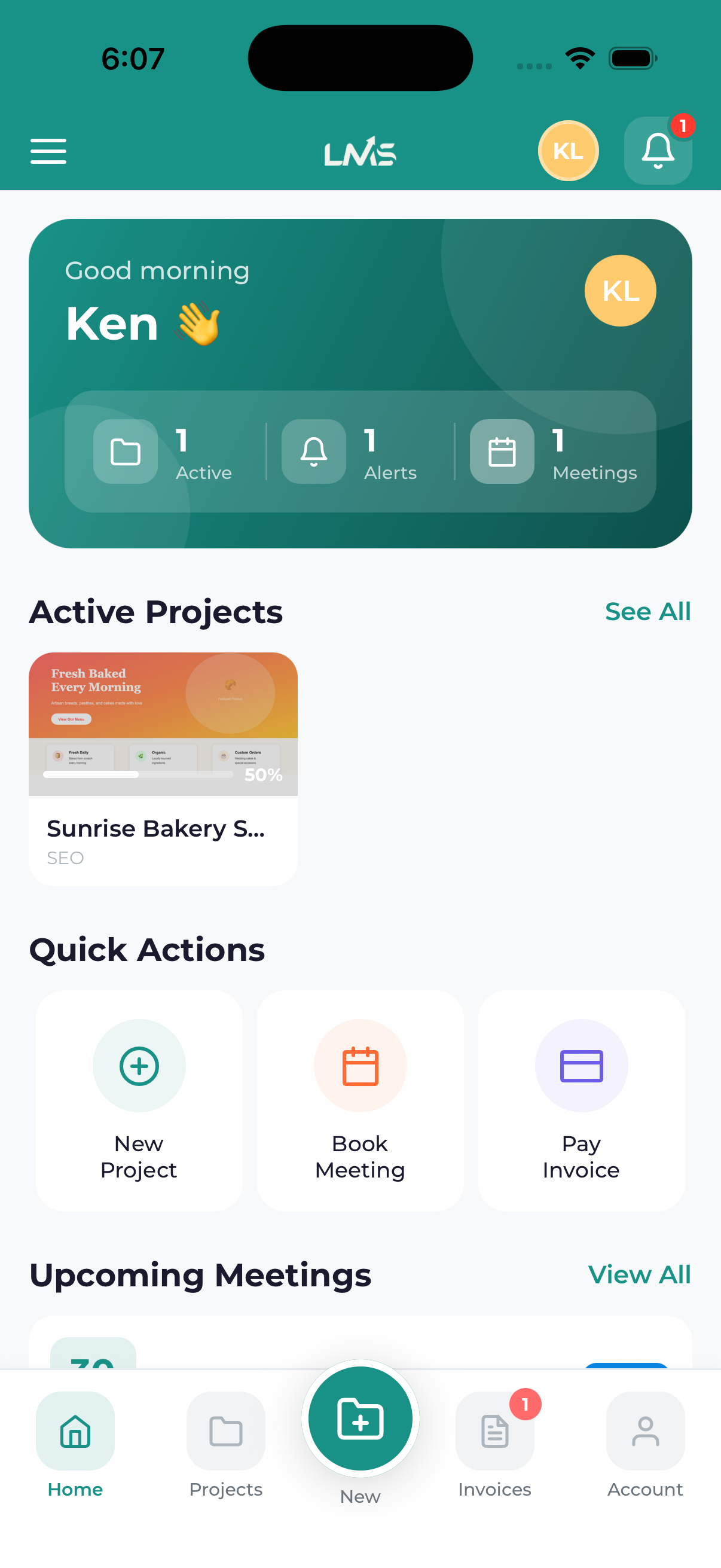
At the bottom of the screen, you’ll find the main navigation bar with these tabs:
Home (Dashboard)
Your central hub showing:
- Overview of active projects
- Recent activity and updates
- Quick action buttons
- Upcoming meetings
- Outstanding invoices
Projects
View and manage all your marketing projects:
- List of all projects (active, completed, on hold)
- Filter and search options
- Project cards with status, dates, and quick info
- Tap any project to see full details
Invoices
Manage your billing:
- All invoices (pending, paid, overdue)
- Pay invoices directly
- View payment history
- Download receipts
Meetings
Schedule and view meetings:
- Upcoming scheduled meetings
- Book new meetings
- Meeting details and join links
- Past meeting history
Side Menu (Hamburger Menu)
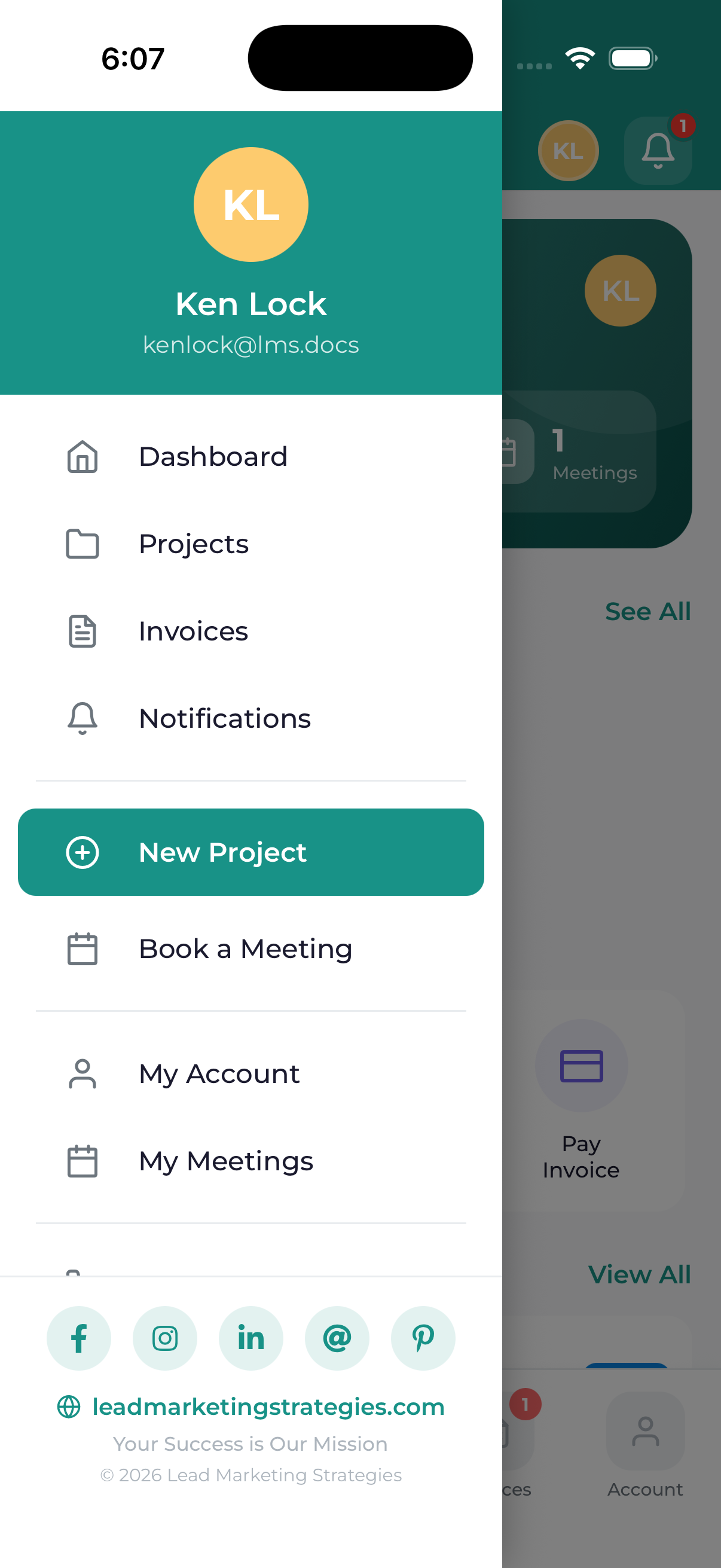
Tap the menu icon (three horizontal lines) in the top-left corner to open the side menu. This contains additional options:
Your Profile
- View your account information
- Edit name, email, phone
- Change password
- Update profile picture
Notifications
- View all notifications
- Mark as read/unread
- Notification history
Free Tools
- Website Grader
- Domain Name Checker
- Social Handle Checker
Services
- Browse all our marketing services
- View service details
- Request quotes
About
- Company information
- Our mission and values
Contact
- Contact information
- Support options
- Phone, email, address
Settings
- App preferences
- Notification settings
- Theme preferences
Log Out
- Sign out of your account
Top Navigation Bar
At the top of most screens, you’ll see:
Left Side
- Menu icon – Opens the side menu (on main screens)
- Back arrow – Returns to the previous screen (on detail screens)
Center
- Screen title – Shows where you are (Dashboard, Projects, etc.)
Right Side
- Notification bell – Shows unread notification count; tap to view notifications
- Profile icon – Quick access to your profile (on some screens)
- Action buttons – Context-specific actions (filter, add, etc.)
Common Gestures
Pull to Refresh
On list screens (Projects, Invoices, etc.), pull down from the top to refresh the data and see the latest updates.
Swipe to Go Back
On iOS, swipe from the left edge of the screen to go back to the previous screen.
Tap to Open
Tap any card (project, invoice, meeting) to open its full details.
Long Press
Some items support long-press for quick actions (like copying text or accessing shortcuts).
Quick Actions on Dashboard
Your dashboard includes quick action buttons for common tasks:
- Start New Project – Begin a new marketing project
- Book Meeting – Schedule a consultation or project meeting
- View All Projects – Go to the projects list
- Pay Invoice – Quick access to pending payments
- Use Tools – Access free marketing tools
Keep an eye on badge indicators (red circles with numbers) on tabs and icons. These show you have unread items that need attention, like new messages, pending invoices, or upcoming meetings.
Search Functionality
Many screens include a search bar at the top to quickly find what you need:
- Projects – Search by project name or service type
- Invoices – Search by invoice number or amount
- Services – Search for specific services
Just tap the search bar and start typing. Results filter in real-time as you type.
