

The Project Details page gives you a complete view of everything related to your project – from status and timeline to files and team communication. Here’s how to find and use all the information available.
Accessing Project Details
Click “Projects” in the sidebar navigation menu.
Click on the project card or row you want to view. You can also click “View Details” in the project actions menu.
The project details page has multiple tabs for different information. Click each tab to see that section.
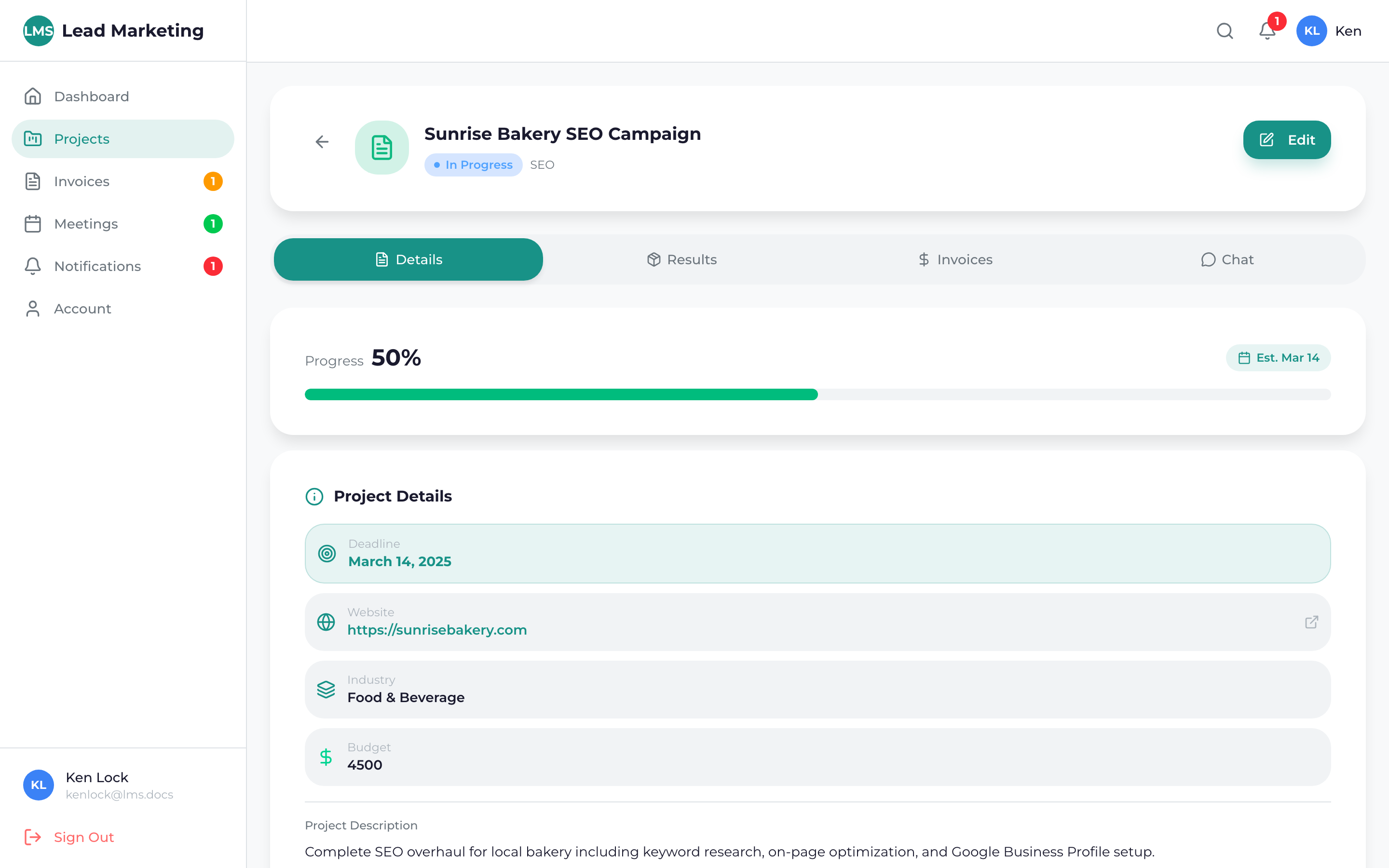
Project Overview Tab
The Overview tab shows essential project information at a glance:
Status & Progress
- Current Status: Active, Pending, On Hold, or Completed
- Progress Bar: Visual indicator of overall completion
- Current Phase: Which stage of the project you’re in
Key Information
- Project Name: The title of your project
- Service Type: Website, SEO, PPC, etc.
- Start Date: When work began
- Target Completion: Estimated finish date
- Project ID: Unique reference number
Your Team
- Project Manager: Your main point of contact
- Team Members: Others working on your project
- Contact Info: Direct ways to reach your team
Timeline Tab
See your project’s milestones and progress:
- Milestones: Key deliverables and checkpoints
- Completed Items: What’s been accomplished
- Upcoming Tasks: What’s being worked on next
- Due Dates: When each milestone is expected
For more details, see our Project Timeline & Milestones guide.
Files Tab
Access all project files and deliverables:
- Shared Files: Documents, designs, and assets
- Deliverables: Final files and materials
- Your Uploads: Files you’ve shared with the team
- File History: Previous versions of updated files
See our Uploading & Managing Files guide for details.
Chat Tab
Communicate directly with your project team:
- Message History: All previous conversations
- Send Messages: Ask questions or provide feedback
- Attachments: Share files in the chat
- Notifications: Get alerts for new messages
See our Project Chat & Messaging guide for more information.
The project chat is the fastest way to communicate with your team. Messages go directly to your project manager, so you’ll typically get quick responses during business hours.
Invoices Tab
If applicable, view project-related invoices:
- Project Invoices: Bills related to this specific project
- Payment Status: Paid, pending, or overdue
- Payment History: Previous payments made
- Quick Pay: Pay invoices directly from this tab
Understanding Project Status
Your project status indicates where things stand:
- Pending: Waiting to begin or awaiting information
- Active: Work is in progress
- In Review: Deliverables ready for your feedback
- On Hold: Temporarily paused
- Completed: Project finished and delivered
If your project status shows “Awaiting Response” or “Action Required”, check for pending approvals, requested feedback, or questions from your team that need your input.
Project Actions
From the project details page, you can:
- Download Files: Get copies of deliverables
- Message Team: Send a message to your project manager
- Request Changes: Submit revision requests
- Approve Work: Sign off on completed milestones
- View Invoice: See associated billing
- Schedule Meeting: Book time with your team
Need Help?
If you have questions about your project or need assistance:
- Use Project Chat: The fastest way to reach your team
- Email: support@leadmarketingstrategies.com
- Phone: (631) 489-5088
- Contact Form: Contact Us
