

Understanding your invoice details ensures you know exactly what you’re paying for. This guide explains each section of your invoice and what all the line items mean.
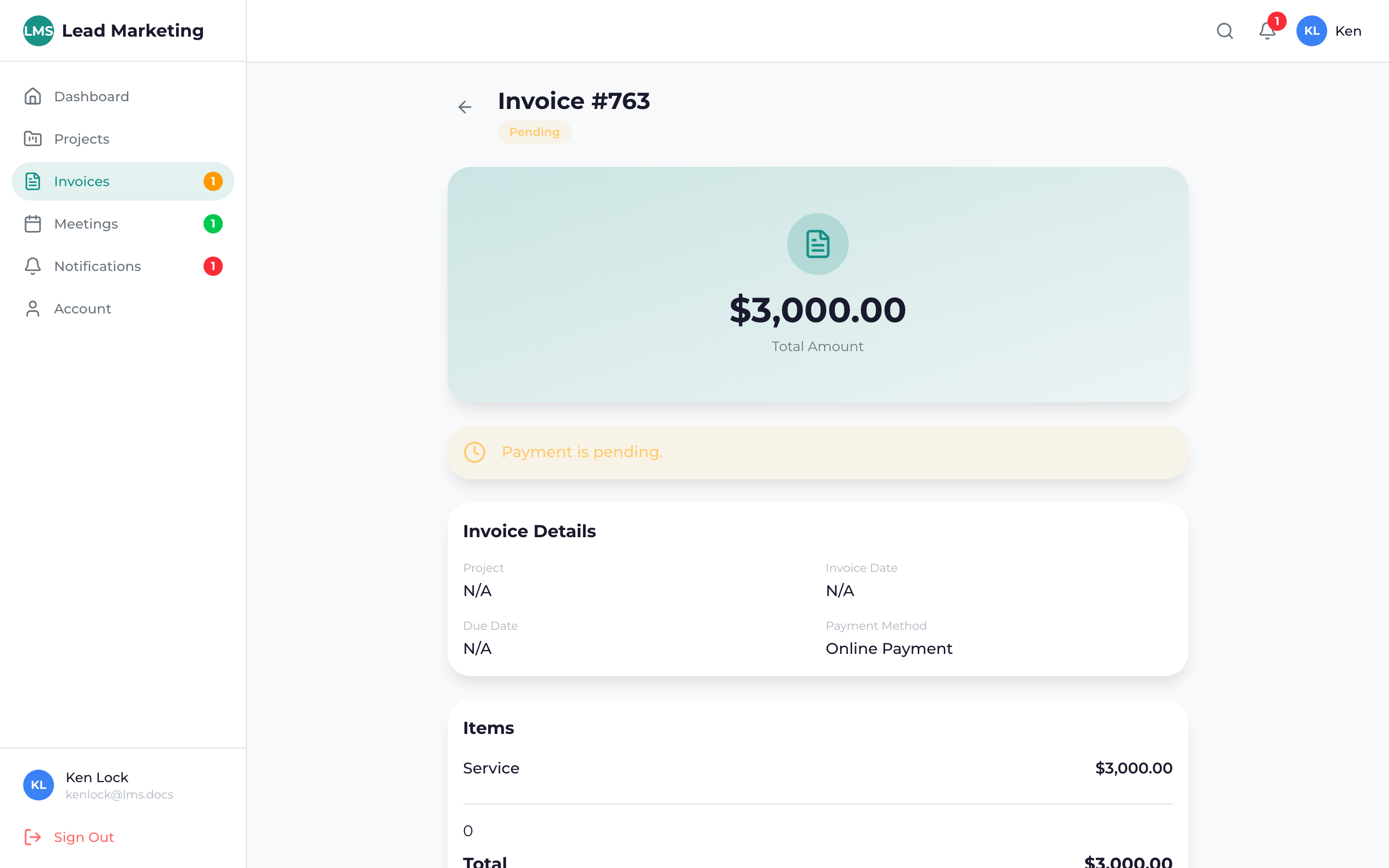
Viewing an Invoice
Click “Invoices” in the sidebar navigation.
Click on the invoice row or the “View” button to open the full invoice details.
Invoice Header Information
The top of each invoice displays:
- Invoice Number: Unique reference number (e.g., INV-2024-0123)
- Invoice Date: When the invoice was created
- Due Date: Payment deadline
- Status: Current payment status
- Project: Related project name (if applicable)
Your Information
- Your name or business name
- Billing address
- Email address
Our Information
- Lead Marketing Strategies
- Company address
- Contact information
Line Items Section
This section breaks down exactly what you’re being billed for:
Each Line Item Shows:
- Description: What the charge is for
- Quantity: Number of units (hours, items, etc.)
- Rate: Price per unit
- Amount: Total for that line item (Quantity x Rate)
Common Line Item Types
Project Services:
- Website Design
- Website Development
- SEO Services
- PPC Management
- Content Writing
Monthly Retainer Services:
- Monthly SEO Retainer
- Monthly Marketing Retainer
- Hosting & Maintenance
Additional Items:
- Rush fees (if applicable)
- Additional revisions
- Third-party costs (domains, licenses, etc.)
If any line item is unclear, don’t hesitate to reach out. We’re happy to explain any charge on your invoice in detail.
Invoice Totals
Below the line items, you’ll find the totals section:
- Subtotal: Sum of all line items before adjustments
- Discounts: Any promotional or negotiated discounts applied
- Taxes: Applicable sales tax (based on your location)
- Credits: Any account credits applied
- Total Due: Final amount to be paid
If Payments Have Been Made:
- Amount Paid: Total payments received
- Balance Due: Remaining amount owed
Payment Status Details
The invoice will show payment status information:
Unpaid Invoice
- Full amount displayed as “Total Due”
- “Pay Now” button available
- Due date prominently displayed
Partially Paid Invoice
- Shows payment history
- Displays remaining balance
- Option to pay remaining balance
Fully Paid Invoice
- “PAID” stamp or indicator
- Payment date recorded
- Payment method shown
- Receipt available for download
Invoice Notes & Terms
At the bottom of the invoice, you may see:
- Notes: Special instructions or information about this invoice
- Payment Terms: Due date policy (e.g., “Net 30”)
- Late Fee Policy: Information about late payment penalties
- Payment Instructions: How to submit payment
Invoice Actions
From the invoice detail page, you can:
- Pay Invoice: Process payment online
- Download PDF: Save a copy for your records
- Print: Print the invoice directly
- Message Us: Ask questions about this invoice
Download PDF copies of paid invoices for your business records and tax purposes. We retain invoice records, but having your own copies is always a good practice.
Understanding Common Terms
- Net 15/30: Payment due within 15 or 30 days of invoice date
- Due Upon Receipt: Payment due immediately
- Deposit: Partial payment required before work begins
- Final Payment: Remaining balance due upon completion
- Recurring: Automatically generated on a regular schedule
Need Help?
Questions about your invoice?
- Email: billing@leadmarketingstrategies.com
- Phone: (631) 489-5088
- Contact Form: Contact Us
Include your invoice number when contacting us for faster assistance.
