

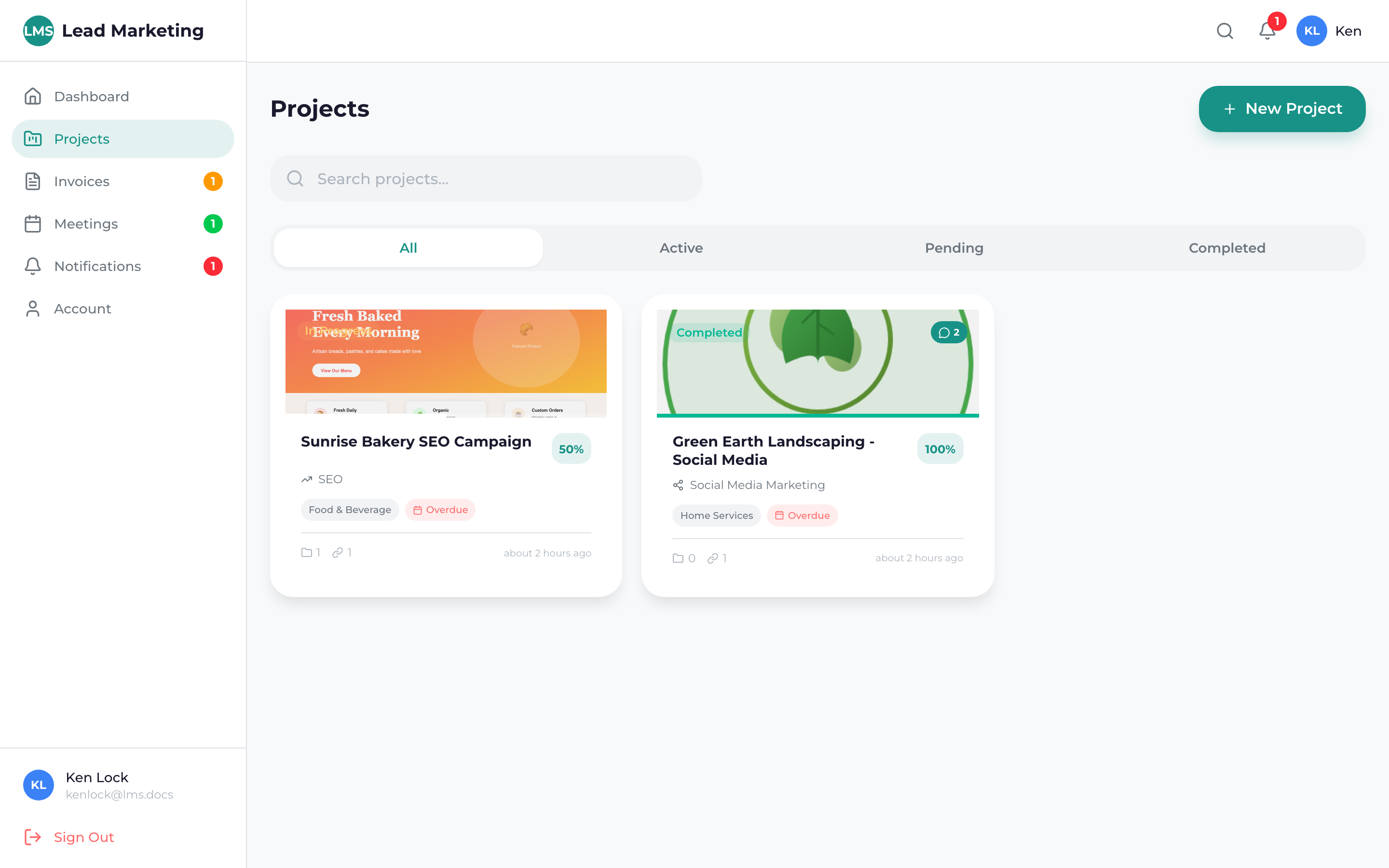
The Projects page in your Client Portal is where you can view, manage, and track all your marketing projects with Lead Marketing Strategies. Whether you have one active project or several, this page keeps everything organized and accessible.
Accessing Your Projects
Click “Projects” in the left sidebar navigation menu, or click on any project card from your dashboard.
You’ll see a list of all your projects, organized by status with the most recent activity first.
Project List Overview
Each project in your list displays:
- Project Name: The title of your marketing project
- Status: Current state (Active, Pending, Completed, On Hold)
- Progress: Visual progress bar showing completion percentage
- Start Date: When the project began
- Last Updated: Most recent activity timestamp
- Quick Actions: View, edit, or access project files
Understanding Project Statuses
Projects can have the following statuses:
- Active – Project is currently in progress with ongoing work
- Pending – Awaiting approval, information, or scheduled to start
- On Hold – Temporarily paused at your request
- Completed – Project has been finished and delivered
- Cancelled – Project was cancelled before completion
If you need to pause, resume, or cancel a project, contact your project manager or reach out to our team. Status changes may affect project timelines and billing.
Filtering and Sorting Projects
Quickly find what you need using the filter and sort options:
Filter by Status
Click the status filter dropdown to show only:
- All Projects
- Active Projects
- Pending Projects
- Completed Projects
- On Hold Projects
Sort Options
Sort your project list by:
- Most Recent Activity
- Project Name (A-Z or Z-A)
- Start Date (Newest or Oldest)
- Progress (Highest or Lowest)
Search
Use the search bar to quickly find projects by name or description.
Project Cards
Each project is displayed as a card containing key information:
- Header: Project name and status badge
- Progress Bar: Visual representation of completion
- Service Type: The type of marketing service
- Key Dates: Start date and estimated completion
- Team: Your assigned project manager
- Actions: Quick access buttons for common tasks
Click anywhere on a project card to open the full project details. Use the action buttons for quick access to specific features like files or chat.
Starting a New Project
Ready to start a new marketing project?
- Click the “New Project” or “Start Project” button (usually in the top right)
- Follow the project wizard to specify your needs
- Our team will review and reach out to discuss details
See our Starting a New Project guide for complete instructions.
Project Actions
From the projects page, you can:
- View Project: See complete project details, timeline, and deliverables
- Access Files: View and download project files
- Open Chat: Message your project team
- View Timeline: See milestones and progress
- Request Changes: Submit modification requests
Project Notifications
Stay informed about your projects:
- New file uploads
- Status changes
- Milestone completions
- Messages from your team
- Approval requests
Configure your notification preferences in Account Settings to choose how you’re notified.
Need Help?
If you have questions about your projects or need assistance:
- Email: support@leadmarketingstrategies.com
- Phone: (631) 489-5088
- Contact Form: Contact Us
