

The timeline view helps you track your project’s progress through each phase. See what’s been completed, what’s in progress, and what’s coming next – all in one visual layout.
Accessing the Timeline
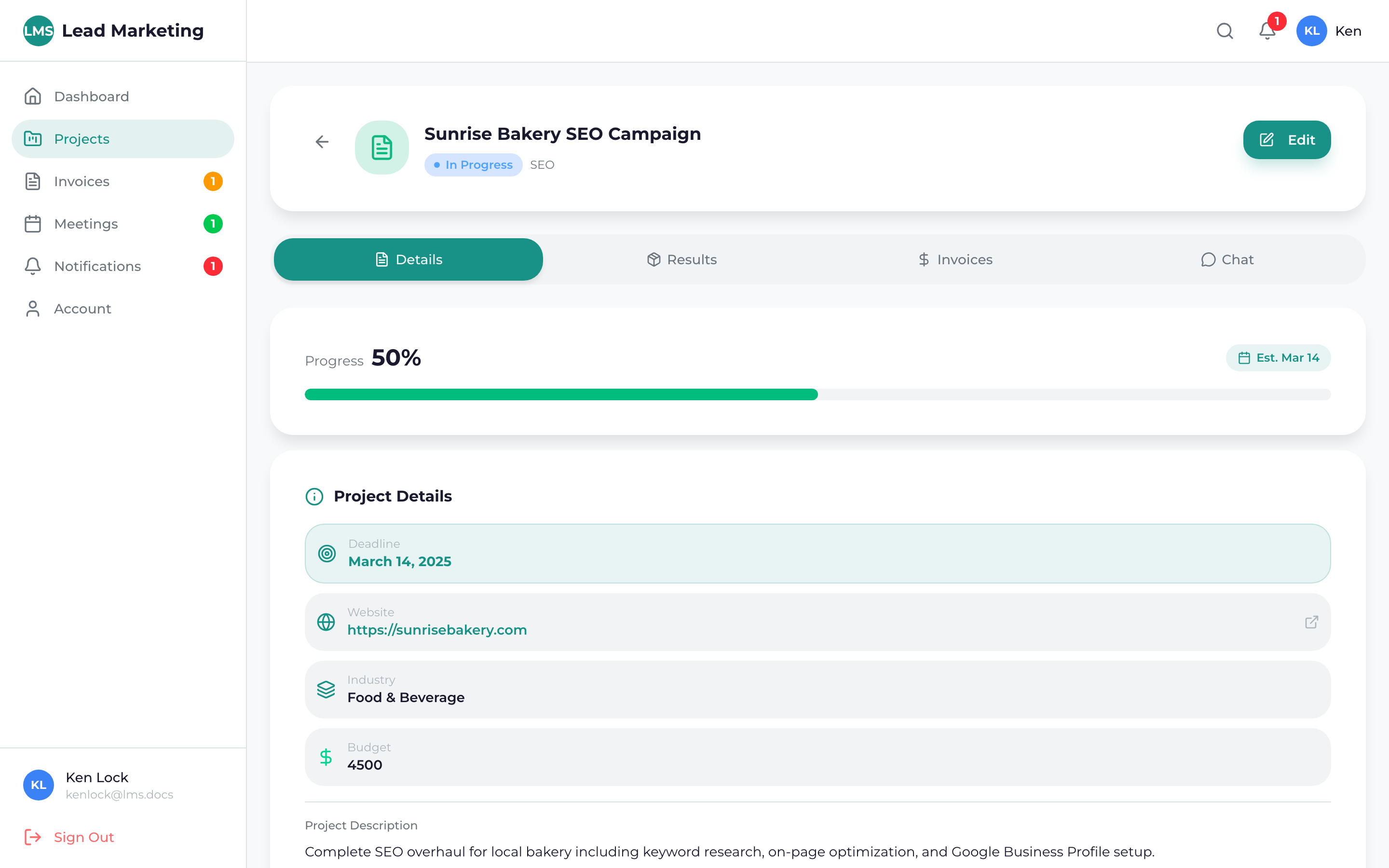
Navigate to Projects and click on the project you want to view.
Select the “Timeline” or “Milestones” tab from the project details page.
Understanding the Timeline
The timeline displays your project as a series of connected milestones:
Visual Layout
- Timeline Bar: A horizontal or vertical line showing project duration
- Milestone Markers: Points along the timeline marking key deliverables
- Progress Indicator: Shows how far along the project has progressed
- Date Labels: Start and target dates for each milestone
Milestone Status Colors
- Green (Completed) – This milestone has been finished
- Blue (In Progress) – Currently being worked on
- Gray (Upcoming) – Scheduled for the future
- Orange (Delayed) – Behind schedule
- Purple (Review) – Awaiting your feedback or approval
Common Project Milestones
Depending on your project type, you may see milestones like:
Website Projects
- Discovery & Research: Understanding your goals and requirements
- Wireframes: Layout and structure planning
- Design Concepts: Visual design mockups
- Design Revisions: Refinements based on feedback
- Development: Building the functional website
- Content Integration: Adding your content
- Testing: Quality assurance across devices
- Launch: Going live!
- Post-Launch Support: Training and initial support
SEO Projects
- Audit: Analyzing your current website
- Strategy: Developing the optimization plan
- Technical Fixes: Resolving technical issues
- On-Page Optimization: Improving page content
- Content Creation: New optimized content
- Link Building: Authority building
- Monthly Reporting: Ongoing progress updates
Click on any milestone to see more details, including specific tasks, deliverables, and any items that need your attention.
Tracking Progress
Overall Progress
The overall project progress percentage is calculated based on:
- Number of completed milestones
- Weighted importance of each phase
- Tasks completed within each milestone
Milestone Progress
Each milestone may have its own progress indicator showing:
- Tasks completed vs. total tasks
- Percentage complete
- Estimated time remaining
Your Role in the Timeline
Some milestones require your participation:
Feedback & Approval
- Review deliverables when notified
- Provide feedback promptly to avoid delays
- Approve milestones to move forward
Providing Information
- Supply requested content or assets
- Answer questions from your team
- Confirm details when asked
Delays in feedback or approvals can push back subsequent milestones. When you see a milestone awaiting your response, try to address it within 1-2 business days to keep things on track.
If a Milestone is Delayed
Sometimes timelines shift. If you see delayed milestones:
- Check the reason: Click the milestone for details on the delay
- Review action items: See if anything is waiting on you
- Communicate: Use project chat to discuss timeline concerns
- Be flexible: Quality work sometimes takes longer than expected
Your project manager will proactively communicate any significant timeline changes.
Timeline Notifications
You’ll receive notifications when:
- A milestone is completed
- A milestone needs your review or approval
- Your feedback is requested
- The timeline is updated
- Significant changes occur
Enable email and push notifications so you never miss important milestone updates. Timely responses help keep your project on schedule!
Need Help?
Questions about your project timeline?
- Project Chat: Message your team directly from the project
- Email: support@leadmarketingstrategies.com
- Phone: (631) 489-5088
- Contact Form: Contact Us
