

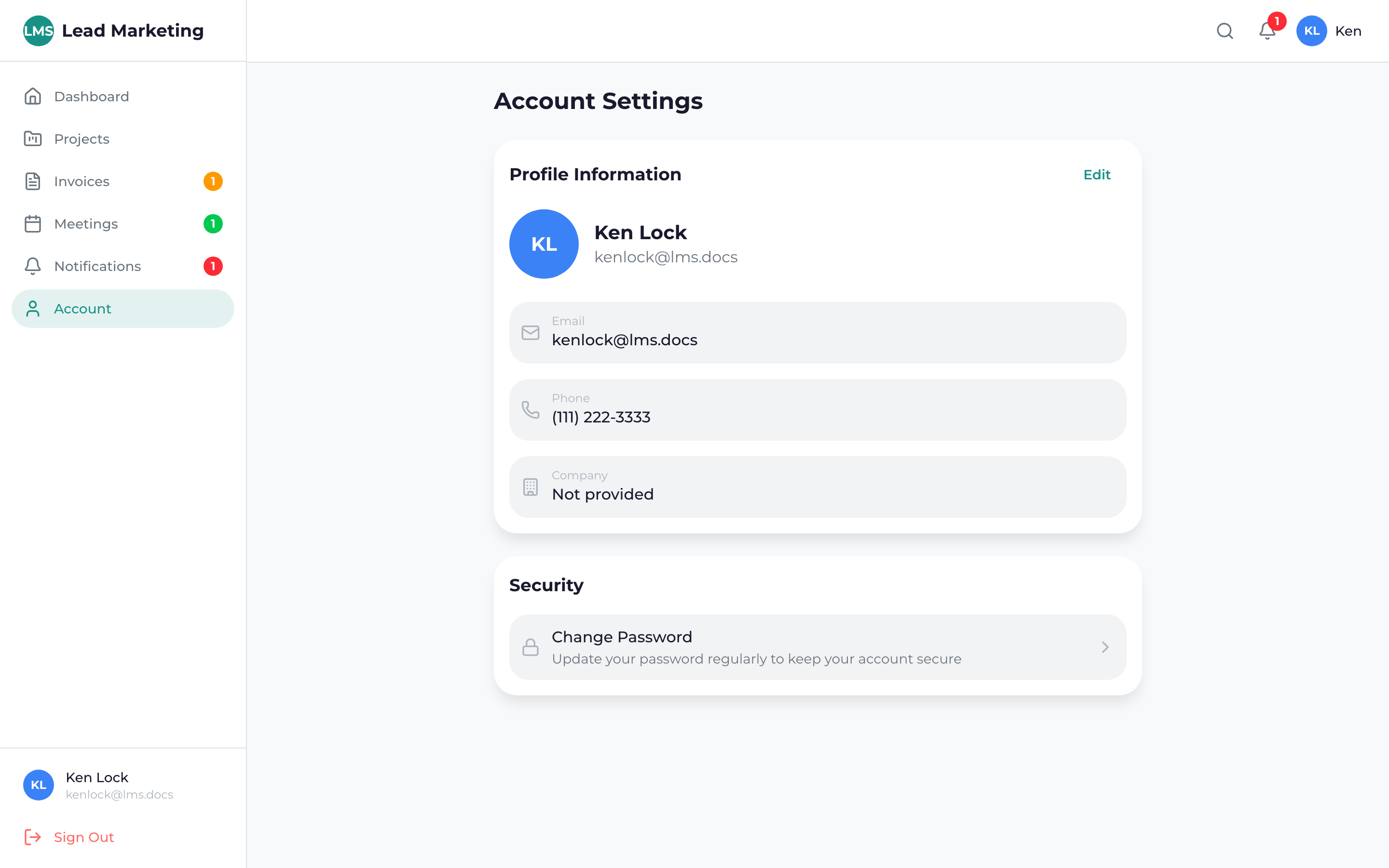
Your profile settings control how you appear in the Client Portal and how we communicate with you. Keep your information up to date to ensure smooth project collaboration.
Accessing Profile Settings
Click your name or profile picture in the top right corner of the portal.
Click “Settings”, “Account”, or “Profile” from the dropdown menu.
Select the “Profile” tab or section if not already there.
Profile Information
Your profile includes:
Basic Information
- Full Name: Your first and last name
- Display Name: How your name appears in the portal
- Profile Photo: Your profile picture (optional)
Contact Information
- Email Address: Your primary email (used for login)
- Phone Number: Primary contact number
- Alternative Phone: Backup contact number (optional)
Business Information
- Company Name: Your business or organization
- Job Title: Your role or position
- Website: Your company website (optional)
Address
- Street Address: For billing and correspondence
- City, State, ZIP: Full mailing address
- Country: Your country
Updating Your Profile
Click on any field to edit it, or click an “Edit” button.
Type your updated information in the fields.
Click “Save”, “Update Profile”, or similar button to save your changes.
Changing Your Profile Photo
- Click on your current profile photo or the camera icon
- Select “Upload Photo” or “Change Photo”
- Choose an image file from your computer
- Crop or adjust if prompted
- Save the changes
Photo requirements:
- JPG, PNG, or GIF format
- Square images work best
- Minimum 200×200 pixels recommended
- Maximum file size: 5MB
A clear, professional profile photo helps your project team identify you and builds rapport. Even a simple headshot makes a difference!
Changing Your Email Address
To change your registered email:
- Go to Profile Settings
- Click “Change Email” or edit the email field
- Enter your new email address
- Confirm your password for security
- Check your new email for a verification link
- Click the verification link to confirm
Your email address is your login. After changing it, you’ll need to use the new email to sign in. Make sure you have access to the new email before changing.
Updating Contact Information
Keep your contact info current so we can reach you:
- Phone Number: Update if you change numbers
- Address: Important for invoicing and correspondence
- Company: Update if you change companies
Time Zone Settings
Your time zone affects how dates and times appear:
- Find the Time Zone setting in your profile
- Select your current time zone from the dropdown
- Save changes
This ensures meeting times and notifications display in your local time.
Language Preferences
If available, you can set your preferred language:
- Find Language settings
- Select your preferred language
- Save changes
- The portal will display in your chosen language
Profile Privacy
Your profile information is:
- Visible to the Lead Marketing Strategies team
- Used for project communication and billing
- Never shared with third parties without consent
- Stored securely in compliance with privacy regulations
What Happens When You Update
When you update your profile:
- Changes take effect immediately
- Your project team sees updated information
- Invoices will use new billing information going forward
- You receive a confirmation email for major changes
Related Settings
Other account settings you may want to review:
Need Help?
Questions about your profile?
- Email: support@leadmarketingstrategies.com
- Phone: (631) 489-5088
- Contact Form: Contact Us
