

The Notification Center keeps you informed about everything happening with your projects, invoices, meetings, and account. View all your alerts in one place and never miss important updates.
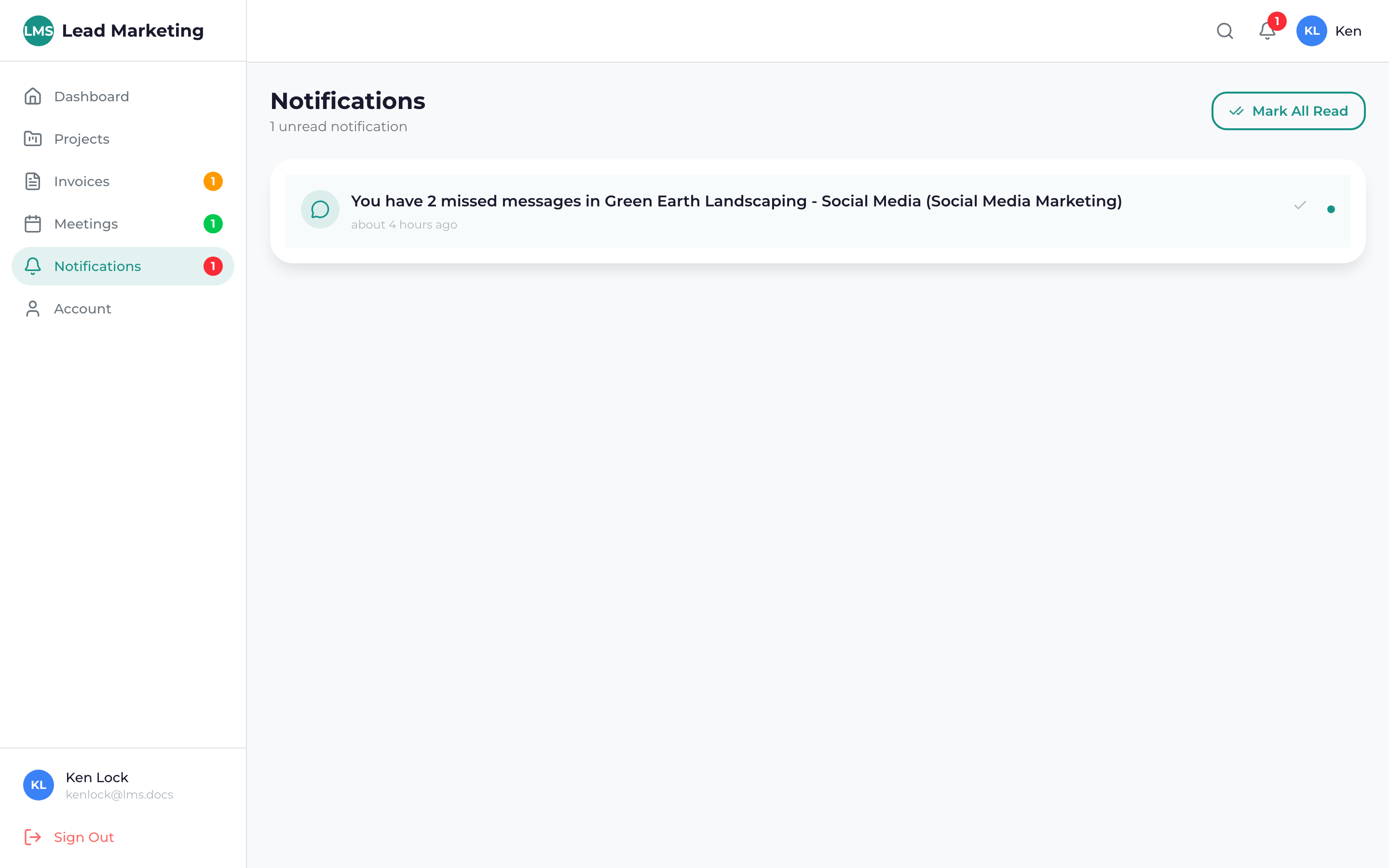
Accessing the Notification Center
From the Header
Click the bell icon in the top header bar. A badge shows the number of unread notifications.
From the Menu
Click “Notifications” in the sidebar navigation for the full notification center view.
Notification List
Notifications are displayed with:
- Icon: Visual indicator of notification type
- Title: Brief description of the notification
- Details: Additional context or information
- Time: When the notification was received
- Status: Read or unread indicator
Types of Notifications
Project Notifications
- Project status changes
- New files uploaded
- Milestone completed
- Feedback requested
- New messages in project chat
- Approval needed
Invoice Notifications
- New invoice created
- Payment due reminder
- Payment overdue alert
- Payment received confirmation
Meeting Notifications
- Meeting scheduled
- Meeting reminder (24 hours before)
- Meeting reminder (1 hour before)
- Meeting rescheduled
- Meeting cancelled
Account Notifications
- Profile updated
- Password changed
- Security alerts
- System announcements
Managing Notifications
Mark as Read
Notifications are automatically marked as read when you view them. You can also:
- Click the checkmark icon to mark individual notifications as read
- Click “Mark All as Read” to clear all unread notifications
Taking Action
Many notifications include action links:
- Click notification to view related item
- Use action buttons like “View Invoice”, “Join Meeting”, “View Project”
Clearing Notifications
Old notifications can be cleared:
- Click the X or delete icon on individual notifications
- Use “Clear All” to remove all notifications (use carefully)
Review and clear old notifications regularly to keep your notification center manageable. Focus on unread notifications that need attention.
Filtering Notifications
Find specific notifications using filters:
By Type
- All Notifications
- Projects
- Invoices
- Meetings
- Account
By Status
- All
- Unread Only
- Read
Notification Badge
The bell icon in the header shows a red badge with the count of unread notifications:
- Badge appears when you have unread notifications
- Number indicates how many are unread
- Badge disappears when all are read
- Check regularly for important updates
Real-Time Updates
Notifications update in real-time while you’re in the portal:
- New notifications appear automatically
- Badge count updates instantly
- No need to refresh the page
Some notifications may have a slight delay (a few seconds to a minute) depending on the type of event. Critical notifications like meeting reminders are sent immediately.
Notification Settings
Customize what notifications you receive in Account Settings:
- Choose which types of notifications to receive
- Set email notification preferences
- Configure push notification settings
- Adjust notification frequency
See Email Notification Preferences and Browser Push Notifications for details.
Notification Best Practices
- Check daily: Review notifications at least once per day
- Act promptly: Respond to action-required notifications quickly
- Enable emails: Get important notifications even when not logged in
- Enable push: Get real-time alerts for urgent items
- Clear regularly: Keep your notification center clean
Need Help?
Questions about notifications?
- Email: support@leadmarketingstrategies.com
- Phone: (631) 489-5088
- Contact Form: Contact Us
