

Paying your invoices through the Client Portal is fast, secure, and convenient. Complete your payment in just a few clicks using your preferred payment method.
How to Pay an Invoice
Click “Invoices” in the sidebar navigation to view your invoices.
Locate the invoice you want to pay. Unpaid invoices will have a “Pay” or “Pay Now” button.
Click the “Pay” or “Pay Now” button. You can do this from the invoice list or from the invoice detail page.
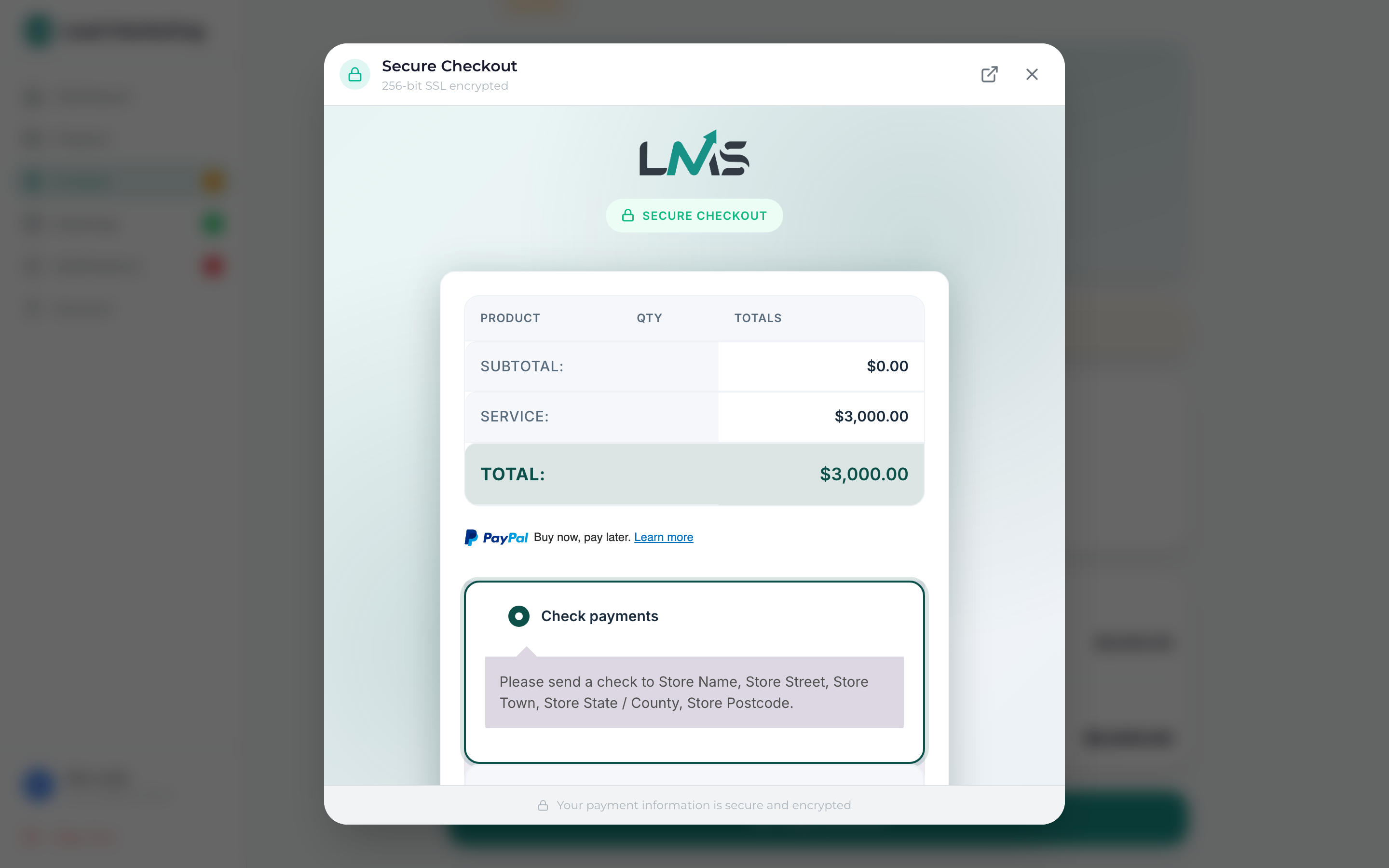
Choose how you’d like to pay: credit card, debit card, or bank transfer (ACH).
Fill in your payment information. For cards, enter the card number, expiration, and CVV.
Review the payment amount and click “Pay” or “Submit Payment” to complete the transaction.
You’ll see a confirmation screen and receive an email receipt for your records.
Payment Options
Full Payment
Pay the entire invoice balance in one transaction. This is the default option.
Partial Payment
Some invoices may allow partial payments. If available:
- Enter the amount you wish to pay
- The remaining balance will be due by the original due date
- You can make additional payments until the balance is zero
Not all invoices allow partial payments. If you need to split a payment, contact us to discuss payment plan options.
Accepted Payment Methods
Credit & Debit Cards
- Visa
- Mastercard
- American Express
- Discover
Bank Transfer (ACH)
- Direct bank account debit
- Lower processing fees
- May take 3-5 business days to process
See Accepted Payment Methods for complete details.
Security
All payments are processed through secure, PCI-compliant payment processors. Your card details are encrypted and never stored on our servers.
We use industry-standard security measures:
- 256-bit SSL encryption
- PCI DSS compliant payment processing
- Secure tokenization of card data
- Fraud detection systems
After Your Payment
Once your payment is processed:
- Confirmation Screen: Immediate confirmation on screen
- Email Receipt: Receipt sent to your registered email
- Invoice Updated: Invoice status changes to “Paid”
- Payment History: Transaction appears in your payment history
Saving Payment Methods
For faster future payments, you can save your payment method:
- Check “Save this card for future payments” during checkout
- Your card will be securely stored
- Next time, simply select the saved card
You can manage saved payment methods in your Account Settings.
Troubleshooting Payment Issues
Payment Declined
If your payment is declined:
- Verify the card number, expiration date, and CVV
- Ensure sufficient funds are available
- Check if your bank flagged the transaction
- Try a different payment method
- Contact your bank if the issue persists
Payment Processing Error
- Don’t click pay again immediately – check your email for confirmation first
- Refresh the page and check if the invoice shows as paid
- Check your bank statement for the charge
- Contact us if you’re unsure whether payment went through
Wrong Amount Charged
Contact us immediately if an incorrect amount was charged. We’ll investigate and correct any errors.
If you suspect you’ve been charged twice, do not attempt to pay again. Contact us immediately at (631) 489-5088 or billing@leadmarketingstrategies.com and we’ll resolve it.
Payment Deadlines
To avoid late fees or service interruption:
- Pay before the due date shown on your invoice
- Set up email reminders for upcoming due dates
- Contact us if you need an extension
Need Help?
Questions about payments?
- Email: billing@leadmarketingstrategies.com
- Phone: (631) 489-5088
- Contact Form: Contact Us
