

The Client Portal offers both light and dark modes to suit your preferences and reduce eye strain. Switch between them anytime with a single click.
Switching Between Modes
Look for the sun/moon icon in the top header bar of the portal. It’s usually located near the notification bell and your profile menu.
Click the icon to toggle between modes:
- Sun icon – Click to switch to light mode
- Moon icon – Click to switch to dark mode
The theme changes immediately. Your preference is saved automatically and will persist across sessions.
Light Mode
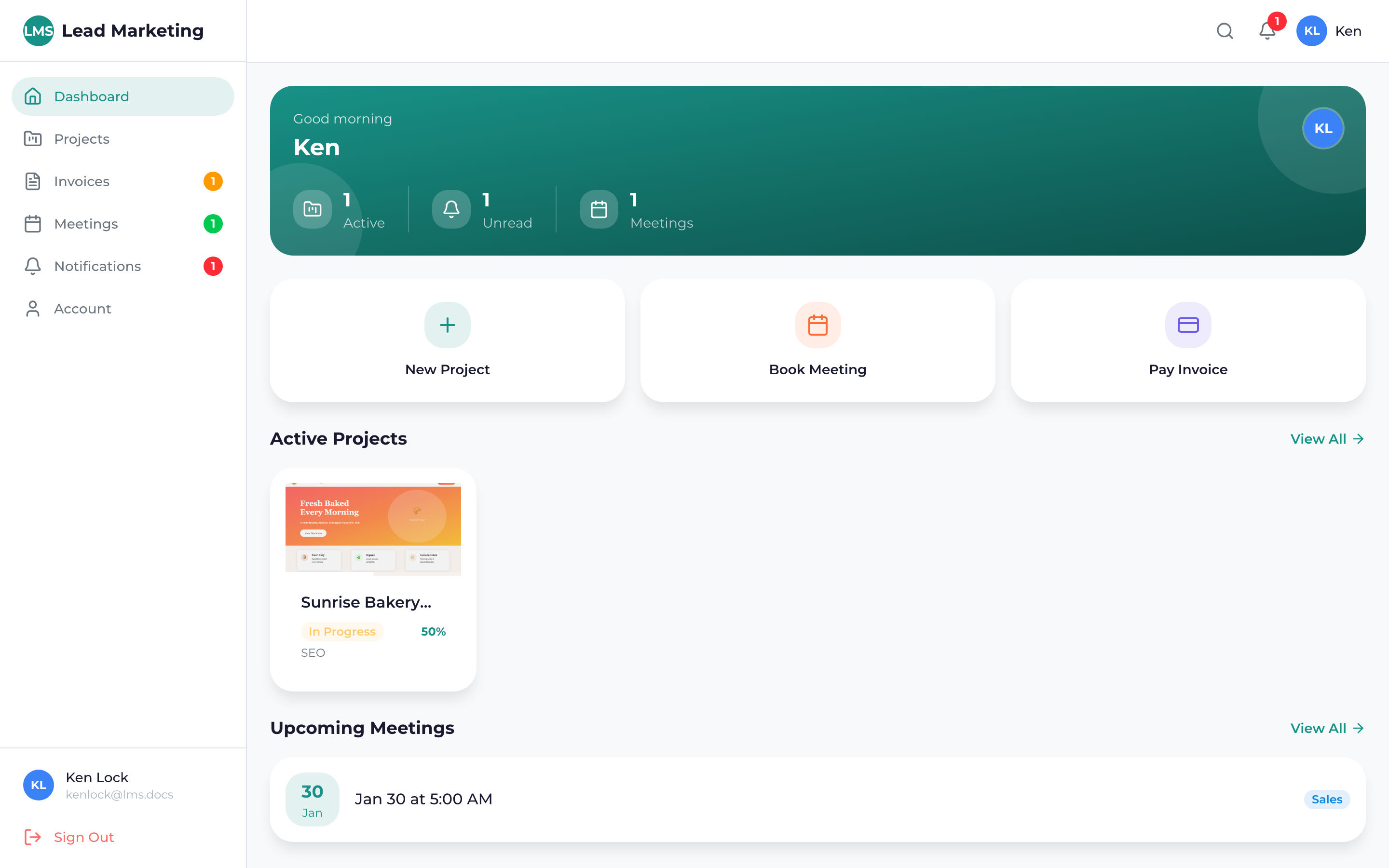
Light mode features:
- White and light gray backgrounds
- Dark text for high contrast
- Bright, colorful accent colors
- Best for well-lit environments
- Traditional, professional appearance
Dark Mode
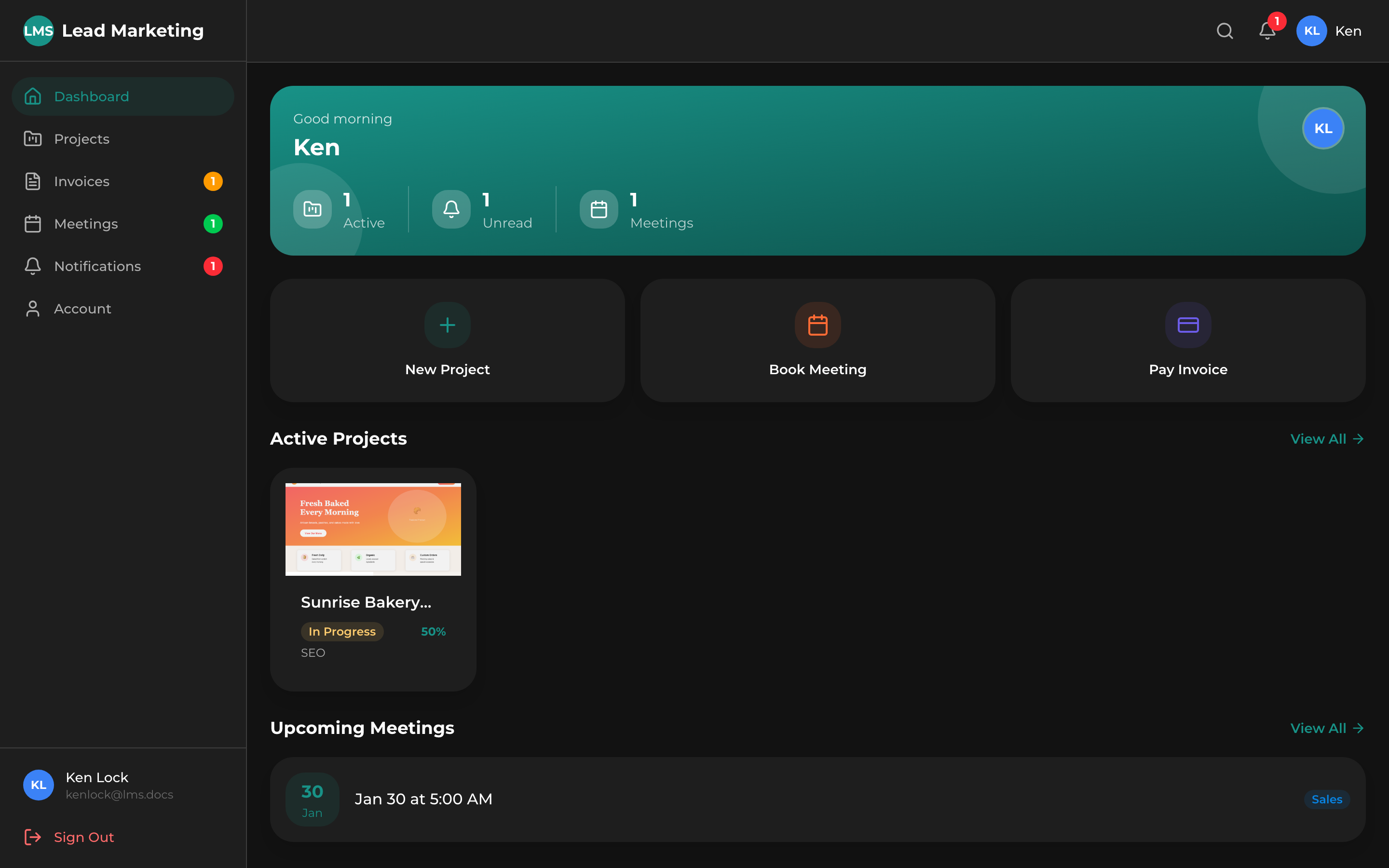
Dark mode features:
- Dark gray and black backgrounds
- Light text for readability
- Muted accent colors that pop
- Reduces eye strain in dim lighting
- Lower screen brightness saves battery on OLED screens
Light mode: Daytime, bright office environments, when matching other business tools.
Dark mode: Nighttime, dim rooms, when working for extended periods, or if you simply prefer it.
Your Preference is Remembered
Once you select a theme, the portal remembers your preference:
- Saved to your browser’s local storage
- Applies immediately on your next visit
- Synced across sessions on the same device
Your theme preference is saved per device/browser. If you use multiple devices, you’ll need to set your preference on each one.
Benefits of Dark Mode
Reduced Eye Strain
Dark mode emits less bright light, which can be easier on your eyes, especially during:
- Extended work sessions
- Nighttime browsing
- Working in dim environments
Better Sleep
Less blue light exposure in the evening may help you sleep better. Consider switching to dark mode a few hours before bed.
Battery Savings
On devices with OLED or AMOLED screens, dark mode can significantly reduce battery consumption since black pixels are actually turned off.
Accessibility Considerations
Both themes are designed with accessibility in mind:
- High contrast ratios for readability
- Clear visual hierarchy
- Consistent color meanings across modes
- Works with screen readers
If you have specific accessibility needs, please contact us and we’ll do our best to accommodate you.
Troubleshooting
Theme Not Changing
- Try refreshing the page
- Clear your browser cache
- Ensure JavaScript is enabled
Theme Not Saving
- Make sure cookies and local storage are enabled
- Check if you’re using private/incognito mode (preferences won’t persist)
- Try a different browser
Colors Look Wrong
- Check your monitor’s color settings
- Disable any browser extensions that modify colors
- Try a different browser to isolate the issue
Need Help?
If you have questions about display settings or themes:
- Email: support@leadmarketingstrategies.com
- Phone: (631) 489-5088
- Contact Form: Contact Us
