

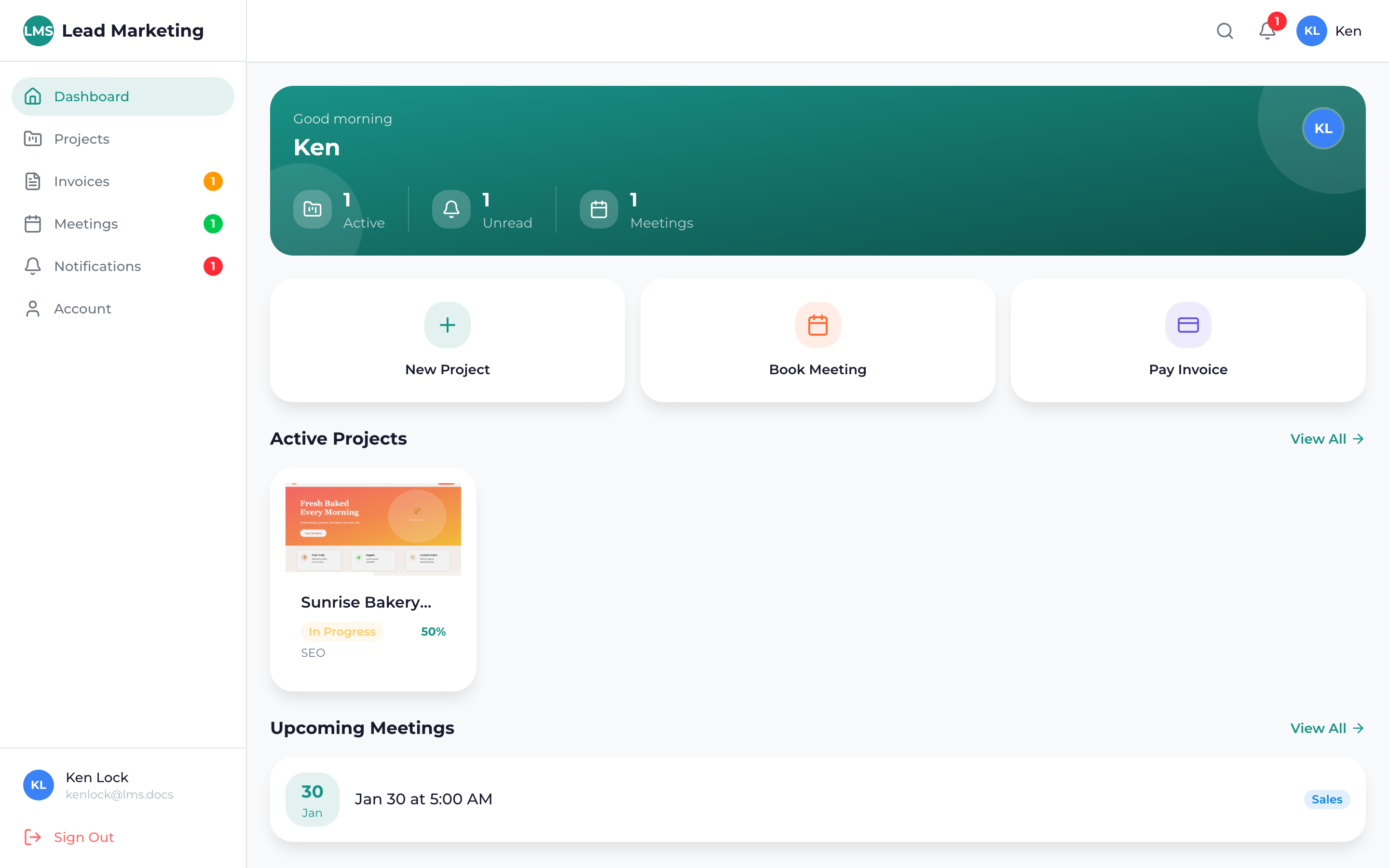
Your Client Portal dashboard is your command center for managing everything related to your marketing projects with Lead Marketing Strategies. It provides a quick overview of your projects, invoices, upcoming meetings, and important notifications.
Dashboard Layout
The dashboard is organized into several key sections:
Navigation Sidebar
On the left side of the screen, you’ll find the main navigation menu with links to:
- Dashboard – Return to this overview page
- Projects – View and manage all your projects
- Invoices – Access billing and payment information
- Meetings – Schedule and view upcoming meetings
- Notifications – View all notifications and alerts
Top Header Bar
The top bar includes:
- Search – Quickly find projects, invoices, or other items
- Notifications Bell – Click to see recent notifications
- Theme Toggle – Switch between light and dark mode
- Profile Menu – Access settings, profile, and logout
Dashboard Widgets
Active Projects Summary
See all your active projects at a glance:
- Project name and status
- Progress percentage
- Next milestone or deadline
- Quick link to view project details
Recent Invoices
View your latest invoices and their status:
- Invoice number and amount
- Payment status (Paid, Pending, Overdue)
- Due date
- Quick pay button for unpaid invoices
Upcoming Meetings
Your scheduled meetings appear here:
- Meeting title and date/time
- Meeting type (video call, phone, in-person)
- Join link for video meetings
- Quick reschedule option
Quick Actions
Common actions you can take directly from the dashboard:
- Start New Project – Begin the project wizard
- Schedule Meeting – Book time with our team
- Make Payment – Pay outstanding invoices
- Contact Support – Get help when needed
Check your dashboard regularly to stay on top of project deadlines, invoice due dates, and upcoming meetings. Enable notifications to receive alerts even when you’re not logged in.
Understanding Status Indicators
Throughout the dashboard, you’ll see color-coded status indicators:
- Green – Active, Paid, Confirmed, On Track
- Blue – In Progress, Processing, Upcoming
- Yellow/Orange – Pending, Awaiting Response, Due Soon
- Red – Overdue, Action Required, Cancelled
- Gray – Completed, Archived, Inactive
Customizing Your Dashboard
While the dashboard layout is optimized for efficiency, you can personalize your experience:
- Theme: Switch between light and dark mode using the toggle in the header
- Notifications: Configure which updates appear on your dashboard
- Default View: Some widgets can be expanded or collapsed
Mobile Dashboard
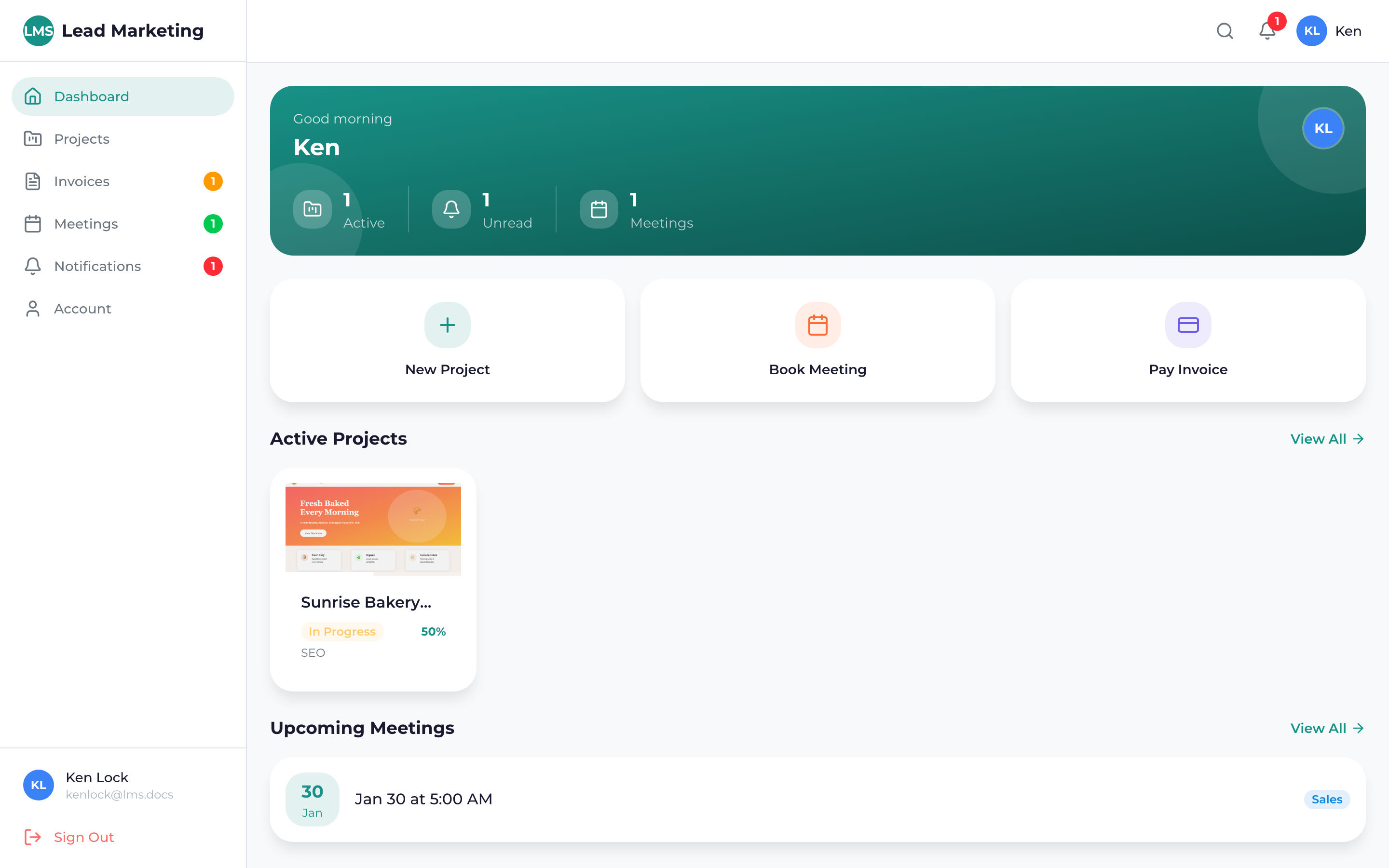
The dashboard is fully responsive and works great on mobile devices:
- Navigation collapses into a hamburger menu
- Widgets stack vertically for easy scrolling
- Touch-friendly buttons and controls
- All features available on mobile
For the best mobile experience, download the Lead Marketing Strategies app from the App Store or Google Play. The app provides native performance and push notifications.
Dashboard Quick Tips
- Start here each session – The dashboard shows what needs your attention
- Check the notification bell – Red badges indicate unread notifications
- Use quick actions – Save time with one-click actions
- Review project status – Stay informed on progress
- Don’t ignore overdue items – Red indicators need immediate attention
Need Help?
If you have questions about your dashboard or need assistance:
- Email: support@leadmarketingstrategies.com
- Phone: (631) 489-5088
- Contact Form: Contact Us
