

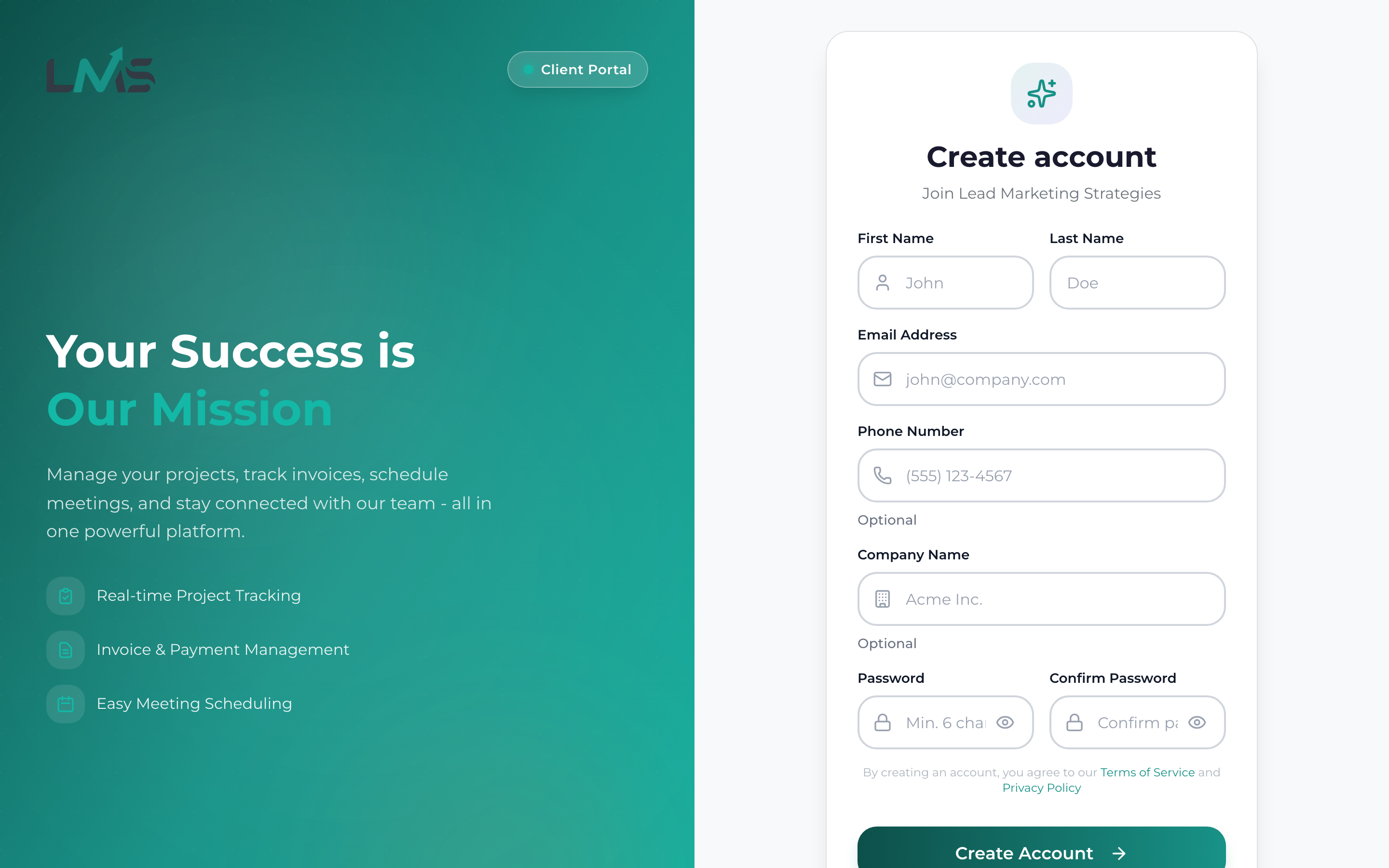
Creating an account in the Lead Marketing Strategies Client Portal takes just a few minutes. Once registered, you’ll have access to project management tools, invoice viewing, meeting scheduling, and direct communication with our team.
Before You Begin
To create your account, you’ll need:
- A valid email address (this will be your login)
- Your full name
- A phone number (for account recovery and important notifications)
- A strong password
If you’ve previously worked with Lead Marketing Strategies, you may already have an account. Try logging in first, or use the “Forgot Password” feature if you’re unsure of your credentials.
Step-by-Step Registration
Navigate to app.leadmarketingstrategies.com and click the “Create Account” or “Sign Up” link below the login form.
Fill out the registration form with your details:
- Full Name: Enter your first and last name as you’d like to be addressed
- Email Address: Use an email you check regularly – this will be your username
- Phone Number: Your primary contact number
- Password: Create a secure password (see requirements below)
- Confirm Password: Re-enter your password to confirm
Read through our Terms of Service and Privacy Policy. Check the box to confirm you agree to the terms.
Click the “Create Account” or “Sign Up” button to submit your registration.
Check your email inbox for a verification message from Lead Marketing Strategies. Click the verification link to activate your account.
Once verified, return to the portal and log in with your email and password. You’re all set!
Password Requirements
For your security, passwords must meet these requirements:
- At least 8 characters long
- Include at least one uppercase letter (A-Z)
- Include at least one lowercase letter (a-z)
- Include at least one number (0-9)
- Special characters are recommended (!@#$%^&*)
Create a memorable but secure password by using a passphrase like “MyProject2024!” or combining random words with numbers: “BlueCoffee42Desk”.
Common Registration Issues
“Email Already Exists”
This means an account with your email already exists. Try:
- Logging in with your email
- Using the “Forgot Password” feature to reset your password
- Contacting support if you didn’t create the account
“Password Does Not Meet Requirements”
Make sure your password includes uppercase, lowercase, numbers, and is at least 8 characters. Avoid common passwords like “password123”.
Verification Email Not Received
- Check your spam or junk folder
- Check Gmail’s Promotions or Updates tabs
- Wait a few minutes and refresh your inbox
- Verify you entered the correct email address
- Request a new verification email
You must verify your email address before you can access all portal features. Unverified accounts have limited functionality.
After Registration
Once your account is created and verified, you can:
- Explore your dashboard
- Start a new project
- View any existing invoices
- Schedule a consultation meeting
- Update your profile settings
Need Assistance?
If you encounter any issues during registration:
- Email: support@leadmarketingstrategies.com
- Phone: (631) 489-5088
- Contact Form: Contact Us
