

The Files section of your project keeps all documents, designs, deliverables, and shared resources organized in one place. Upload files for your team, download deliverables, and access everything you need for your project.
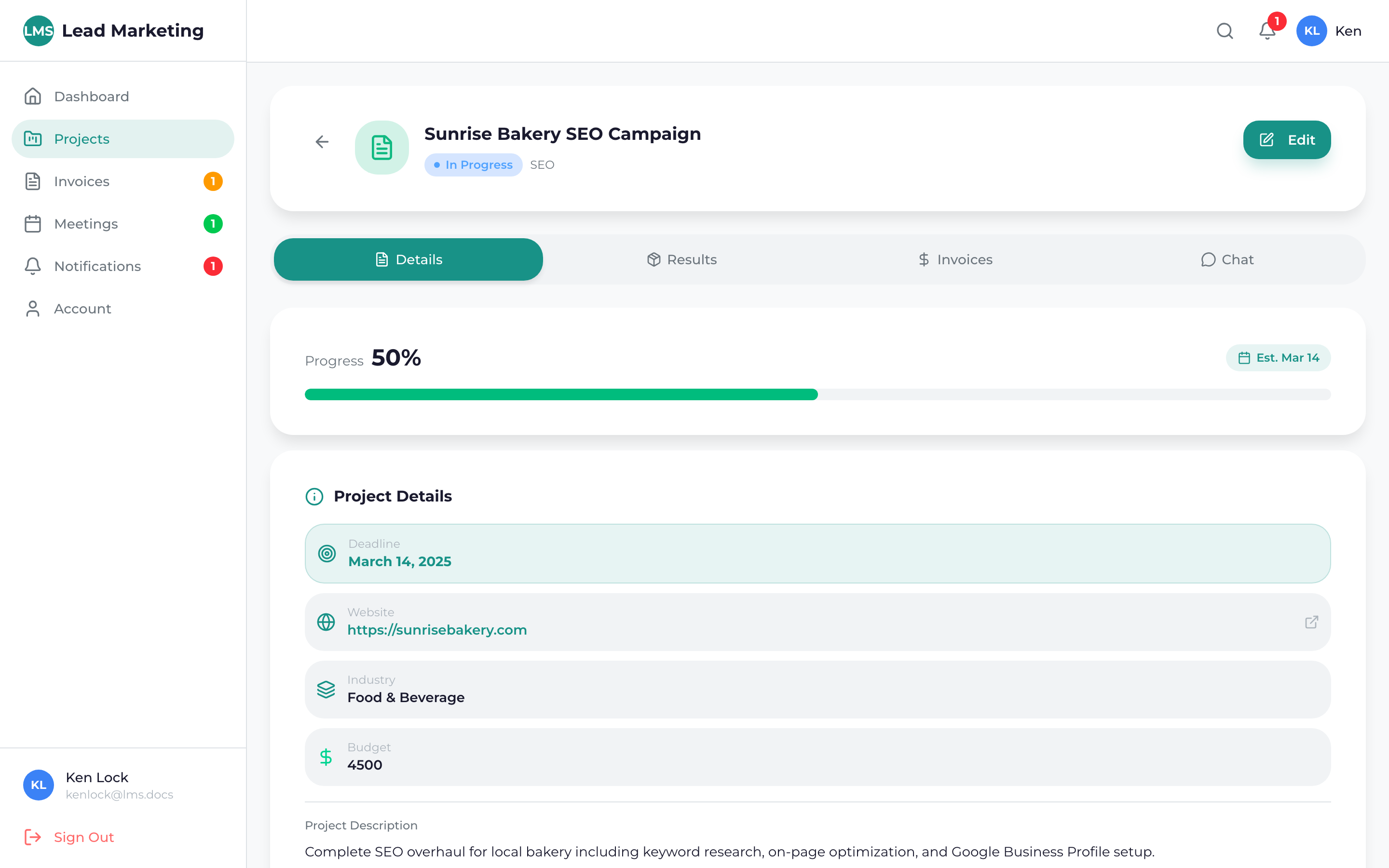
Accessing Project Files
Navigate to Projects and click on the project you want to access.
Click on the “Files” or “Documents” tab in the project details page.
Browse through folders or use the search function to find specific files.
File Organization
Files are typically organized into categories:
Deliverables
Final work products from our team:
- Design mockups and final designs
- Completed website files
- Reports and analytics
- Marketing materials
Your Uploads
Files you’ve shared with the team:
- Brand assets (logos, images)
- Content documents
- Reference materials
- Feedback documents
Project Documents
Important project paperwork:
- Proposals and contracts
- Project briefs
- Meeting notes
- Invoices
Uploading Files
Click the “Upload” button or drag and drop files directly into the files area.
Choose files from your computer. You can select multiple files at once.
Add a note or description to help your team understand what you’re sharing.
Click “Upload” to send the files. A progress bar shows upload status.
Supported File Types
Images
- PNG, JPG, JPEG, GIF, WebP
- SVG, AI, PSD, EPS
- TIFF, BMP
Documents
- PDF, DOC, DOCX
- XLS, XLSX, CSV
- PPT, PPTX
- TXT, RTF
Design Files
- Adobe: AI, PSD, INDD, XD
- Figma: Shared via link
- Sketch: .sketch files
Other
- ZIP, RAR (compressed files)
- MP4, MOV (video)
- MP3, WAV (audio)
Individual files can be up to 100MB. For larger files, please use a file sharing service like Google Drive or Dropbox and share the link in the project chat.
Downloading Files
To download files from your project:
- Navigate to the Files tab
- Find the file you want to download
- Click the download icon or “Download” button
- The file will save to your default download location
Bulk Download
Download multiple files at once:
- Select files using checkboxes
- Click “Download Selected” or “Download All”
- Files will download as a ZIP archive
File Previews
Preview files directly in the portal without downloading:
- Images: Click to view full size with zoom
- PDFs: View in built-in PDF viewer
- Documents: Preview supported for common formats
Use the preview feature to quickly review designs and documents. It’s faster than downloading, and you can easily navigate between multiple files.
File Versioning
When files are updated, previous versions are preserved:
- Click the file to see version history
- Compare different versions side by side
- Download any previous version if needed
- See who uploaded each version and when
Sharing Files with Your Team
Tips for sharing files effectively:
- Name files clearly: Use descriptive names (e.g., “Company-Logo-Final.png”)
- Include context: Add notes explaining what the file is for
- Organize by category: Upload to the appropriate folder when possible
- Compress large batches: ZIP multiple related files together
File Security
All files are stored securely and encrypted. Only you and authorized team members can access your project files. Never share your portal login credentials with others.
Troubleshooting
Upload Failed
- Check file size (max 100MB per file)
- Verify the file type is supported
- Check your internet connection
- Try a different browser
Can’t Download File
- Check if pop-ups are blocked
- Ensure sufficient disk space
- Try right-click > “Save link as”
- Clear browser cache and retry
File Not Appearing
- Refresh the page
- Check if the upload completed successfully
- Look in the correct folder/category
Need Help?
If you’re having issues with files:
- Email: support@leadmarketingstrategies.com
- Phone: (631) 489-5088
- Contact Form: Contact Us
