

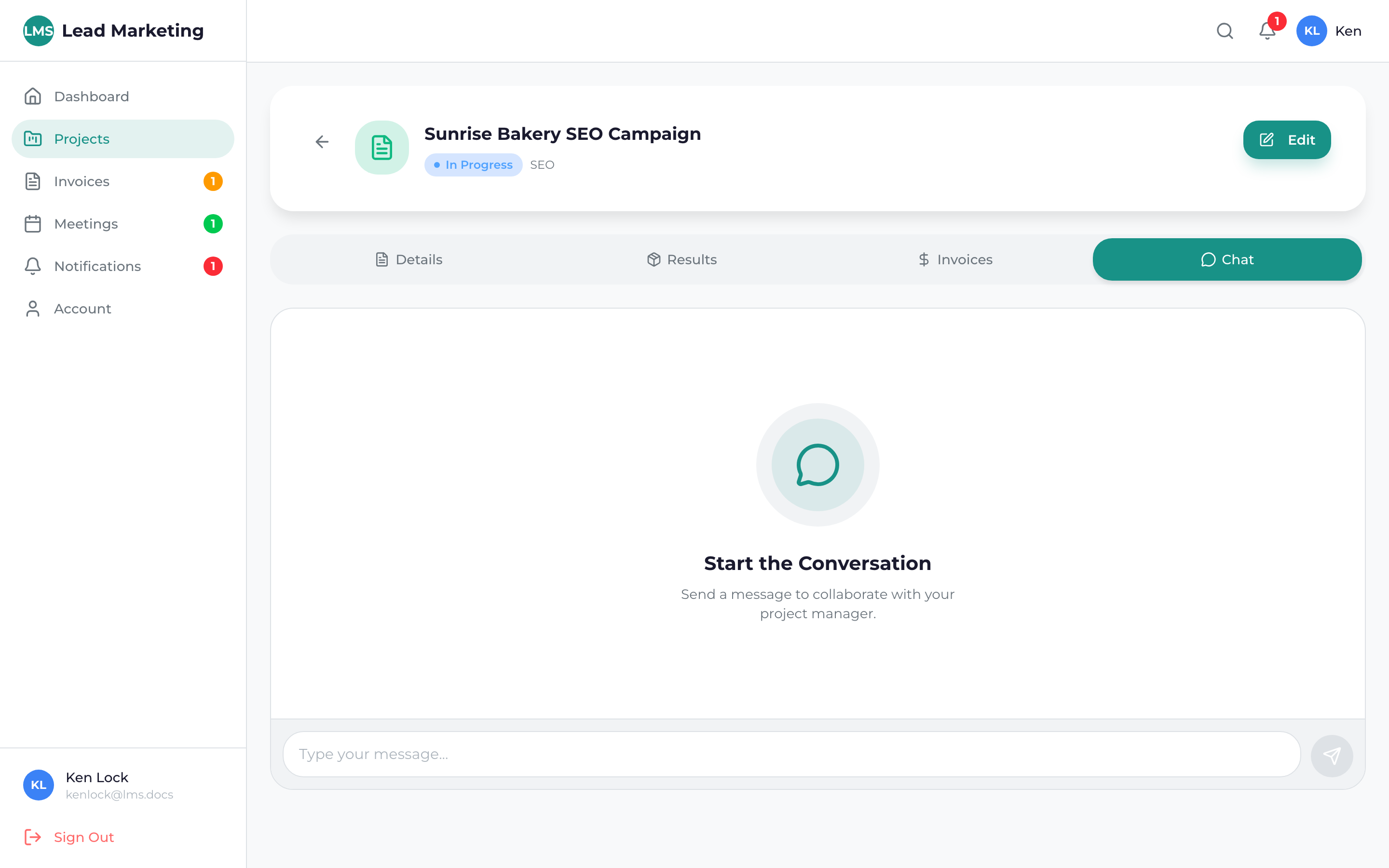
Project chat is your direct line of communication with the Lead Marketing Strategies team working on your project. Ask questions, provide feedback, share files, and keep all project-related conversations in one organized place.
Accessing Project Chat
Navigate to Projects and click on the project you want to discuss.
Click on the “Chat” or “Messages” tab in the project details page.
Type your message in the text field at the bottom and press Enter or click Send.
Chat Features
Send Text Messages
Type your message in the input field and send. Messages are delivered immediately to your project team.
Share Files
Click the attachment icon (paperclip) to upload files directly in the chat:
- Images (PNG, JPG, GIF)
- Documents (PDF, DOC, DOCX)
- Spreadsheets (XLS, XLSX, CSV)
- Design files (AI, PSD)
- Compressed files (ZIP)
Message History
Scroll up to view all previous messages. Your entire conversation history is preserved and searchable.
Read Receipts
See when your messages have been read by team members (if enabled).
You can use basic formatting in your messages. Press Enter to send, or Shift+Enter to add a new line without sending.
Who Receives Your Messages
When you send a message in project chat:
- Project Manager: Your main contact sees all messages
- Team Members: Relevant team members are notified
- Notifications: Team gets email/push alerts for new messages
You’re communicating with the entire project team, not just one person, so the right person can respond to your questions.
Response Times
You can expect responses:
- Business Hours (Mon-Fri, 9am-6pm EST): Typically within a few hours
- Evenings/Weekends: Next business day
- Urgent Issues: Call (631) 489-5088 for immediate assistance
For urgent matters that can’t wait, call us directly. Chat is great for most communication, but phone calls ensure immediate attention for time-sensitive issues.
Best Practices for Chat Communication
Be Clear and Specific
- State exactly what you need or are asking about
- Reference specific pages, files, or items by name
- Include screenshots if describing a visual issue
Keep Related Items Together
- Discuss one topic per message thread when possible
- Reference previous messages if following up
- Start new conversations for unrelated topics
Provide Complete Feedback
- When reviewing work, provide all feedback at once
- Be specific about what you like and what needs changes
- Include examples or references when helpful
Chat Notifications
Stay informed about new messages:
In-Portal Notifications
- Badge count on the notification bell
- Unread message indicator on project cards
- Real-time updates while you’re in the portal
Email Notifications
Receive email alerts for new messages (configurable in your account settings).
Push Notifications
If enabled, get browser or mobile push notifications for new messages.
Message Guidelines
Keep all project communication professional and constructive. Avoid sharing sensitive personal information like passwords, credit card numbers, or social security numbers in the chat.
Common Uses for Project Chat
- Questions: Ask about progress, timeline, or deliverables
- Feedback: Share your thoughts on designs or drafts
- Revisions: Request changes to deliverables
- Approvals: Confirm you’re happy with completed work
- Updates: Share information your team needs to know
- Files: Send additional materials or resources
- Scheduling: Coordinate meeting times
Troubleshooting Chat Issues
Messages Not Sending
- Check your internet connection
- Refresh the page and try again
- Try a different browser
Files Won’t Upload
- Check file size (usually max 25MB)
- Ensure the file type is supported
- Try compressing large files
Not Receiving Notifications
- Check notification settings in your account
- Ensure browser notifications are enabled
- Check spam folder for email notifications
Need Help?
If you’re having issues with project chat:
- Email: support@leadmarketingstrategies.com
- Phone: (631) 489-5088
- Contact Form: Contact Us
