

Never miss a meeting by adding your scheduled calls to your favorite calendar app. The Client Portal makes it easy to sync meetings with Google Calendar, Apple Calendar, Outlook, and more.
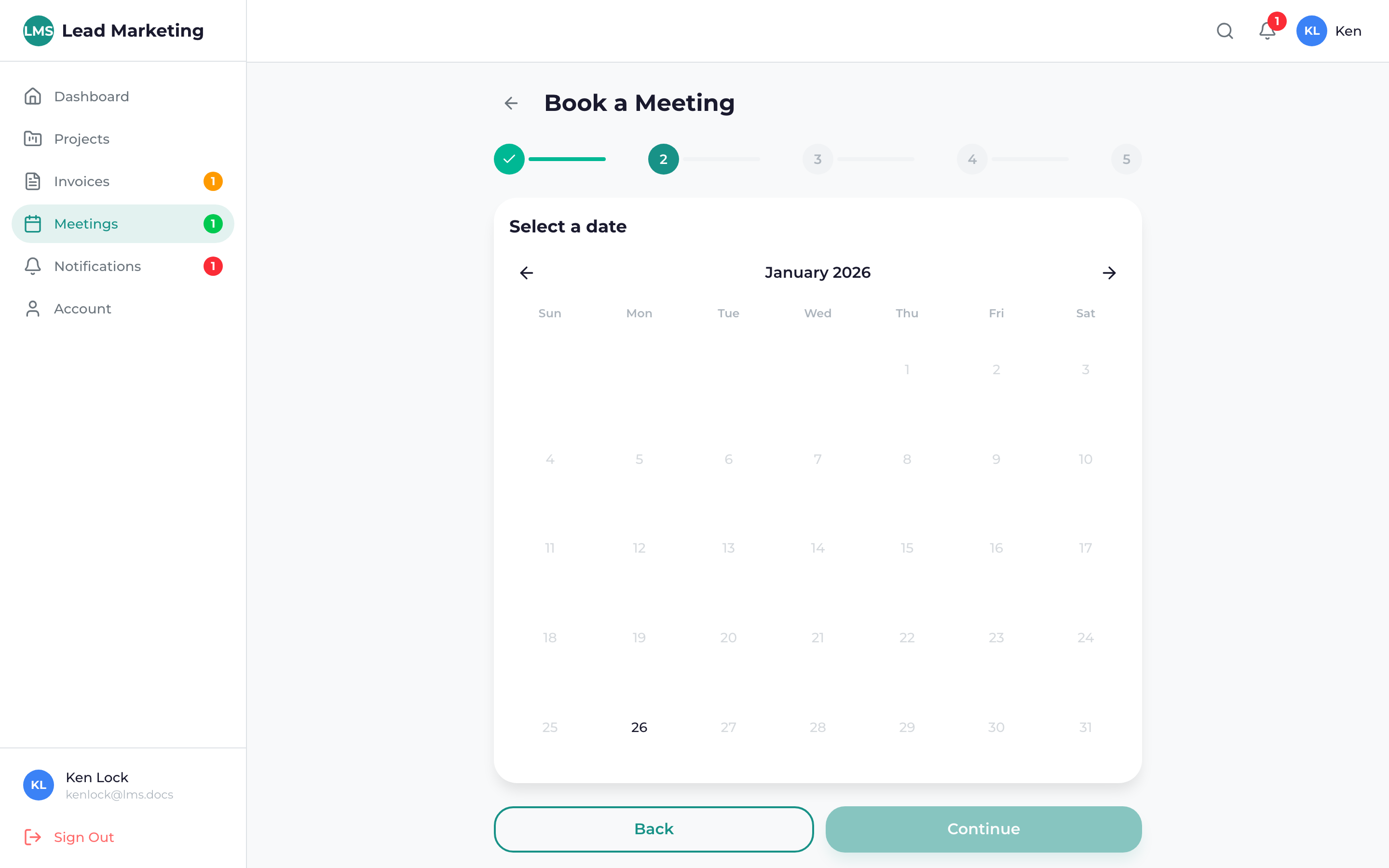
Adding a Meeting to Your Calendar
Navigate to Meetings and click on the meeting you want to add to your calendar.
Click the “Add to Calendar” button. You may see options for different calendar types.
Choose your calendar application: Google Calendar, Apple Calendar, Outlook, or download an ICS file.
Follow the prompts in your calendar app to save the event.
Calendar App Instructions
Google Calendar
- Click “Add to Google Calendar”
- Sign in to Google if prompted
- Review the event details
- Click “Save”
- The event appears in your Google Calendar
Apple Calendar (iCal)
- Click “Add to Calendar” and download the .ics file
- Open the downloaded file
- Apple Calendar will open with the event details
- Click “Add” to save to your calendar
Microsoft Outlook
- Click “Add to Outlook” or download the .ics file
- If .ics file: Open it with Outlook
- Review the meeting details
- Click “Save & Close”
Other Calendar Apps
Download the .ics file and import it into your calendar application. Most calendar apps support ICS imports.
When you book a meeting, you should automatically receive a calendar invite via email. Check your email for the invite with an “Add to Calendar” option.
What’s Included in Calendar Events
Calendar events automatically include:
- Title: Meeting name and type
- Date & Time: Start time and duration
- Location: Video meeting link or physical address
- Description: Meeting details and agenda
- Reminders: Pre-set notifications
Calendar View in Portal
The portal also offers a built-in calendar view:
- Go to Meetings
- Click the “Calendar” view toggle (usually a calendar icon)
- View all meetings on a monthly calendar
- Click any meeting to see details or join
Calendar View Features
- Monthly, weekly, or daily views
- Color-coded meeting types
- Quick access to join links
- Easy navigation between months
Setting Up Reminders
Calendar events include default reminders, but you can customize them in your calendar app:
Recommended Reminders
- 1 day before: Time to prepare
- 1 hour before: Get ready to join
- 10 minutes before: Final reminder
How to Add Reminders
- Open the event in your calendar
- Edit the event settings
- Add or modify reminder notifications
- Save changes
In addition to calendar reminders, the portal sends email reminders 24 hours and 1 hour before your meeting. Configure these in Account Settings.
Time Zone Handling
Meetings are scheduled and displayed in your local time zone:
- Portal detects your time zone automatically
- Calendar events include time zone information
- When traveling, check the event’s original time zone
- Contact us if there’s a time zone discrepancy
Updating Calendar Events
If a meeting is rescheduled:
- You’ll receive an email with updated details
- Update your calendar manually, or
- Remove the old event and add the new one
- Check the portal for the most current information
Calendar Syncing Tips
- Use one primary calendar – Keep all meetings in one place
- Enable notifications – Never miss a meeting
- Include travel time – For in-person meetings
- Block prep time – Add buffer before important meetings
- Review weekly – Check your upcoming meetings each week
Troubleshooting
ICS File Won’t Open
- Right-click and “Open with” your calendar app
- Check that you have a default calendar app set
- Try importing the file through your calendar app’s import function
Event Shows Wrong Time
- Check the time zone setting in your calendar app
- Verify the portal has the correct time zone in your account settings
- Contact support if times don’t match
Need Help?
Questions about calendar integration?
- Email: support@leadmarketingstrategies.com
- Phone: (631) 489-5088
- Contact Form: Contact Us
